IPTV Channel Switching Slow in 2026: Why Channels Take Too Long to Load and How to Fix It
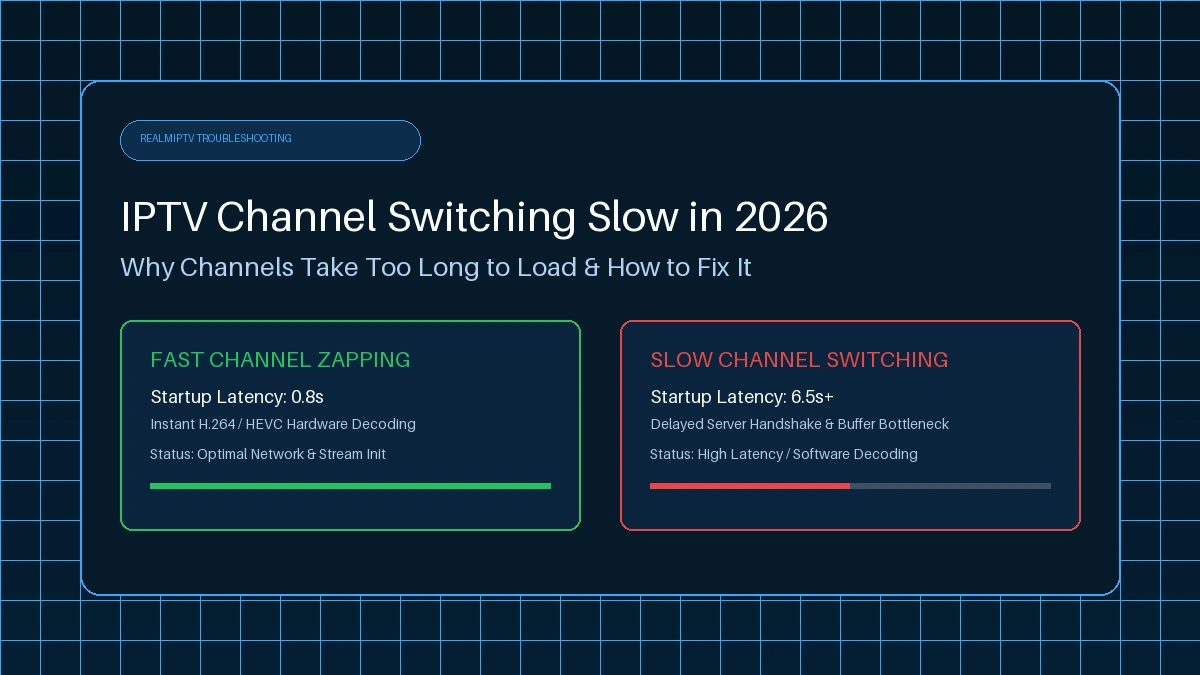
Few things are more frustrating during live TV viewing than selecting a channel on your remote control and waiting five to ten seconds for the picture to appear. On traditional cable television, channel switching (channel zapping) feels almost instantaneous. On IPTV, however, changing channels can involve loading delays, spinning wheels, or black screens before playback begins.
When IPTV channel switching is slow, users often assume their internet speed is failing or that their provider is delivering bad streams. While network speed and server performance matter, channel switching delays stem from a fundamentally different technical process than mid-stream buffering.
In this guide, we break down why IPTV channels take too long to load, explain stream initialization, compare zapping latency against buffering, outline a diagnostic procedure, and present 15 practical fixes to minimize channel startup delays in 2026. Whether you watch on a Smart TV, Firestick, Android TV box, or mobile device, this guide helps optimize your setup for faster channel changes.
What Does Slow IPTV Channel Switching Actually Mean?
To fix slow channel changes, you must understand what happens when you select a channel in your IPTV player app. Unlike traditional broadcasting where all channel frequencies are constantly received by tuner hardware, IPTV streams are delivered over point-to-point IP network packets.
When you zap from Channel A to Channel B, your application must tear down the active video connection and negotiate an entirely new data stream.
The complete IPTV channel switching sequence follows these 8 stages:
- User Selection: You press a new channel button on your remote or select a channel from your Electronic Program Guide (EPG).
- Stream Request: Your IPTV player sends an API request across your network to the stream server.
- Server Response & Handshake: The media server validates your session token and responds with the initial stream manifest or TS/HLS segment.
- Data Packet Arrival: Data packets travel across your ISP network, through your router, and arrive at your streaming device.
- Player Buffer Initialization: Your IPTV player accumulates an initial chunk of data into RAM to ensure steady playback.
- Codec & Decoder Initialization: The decoder on your device analyzes the incoming stream format (H.264, HEVC/H.265) and initializes keyframe decoder.
- First Keyframe (I-Frame) Decoding: Compressed video relies on keyframes (I-frames) to render a full image. The decoder must wait for the next incoming I-frame.
- First Frame Render & Audio Sync: The video frame renders on display, audio track syncs, and continuous playback begins.
If any single step in this 8-stage pipeline encounters friction, overall zapping speed drops.
| Stage | Main Process | Possible Delay Factor |
|---|---|---|
| 1. Channel Request | Remote click to app API output | App UI responsiveness & device RAM |
| 2. Server Response | DNS lookup & server connection handshake | Remote server load & round-trip ping latency |
| 3. Data Packet Arrival | IP packet transport through ISP & router | Wi-Fi jitter, network congestion & latency |
| 4. Player Buffer Init | Filling initial player buffer in RAM | Configured buffer size in IPTV player settings |
| 5. Stream Decoding | Codec identification & GPU hardware decode | Device processor power & video codec (H.265/4K) |
| 6. First Frame Display | Waiting for I-Frame & rendering on screen | Stream GOP structure & keyframe frequency |
Why Is My IPTV Channel Switching So Slow?
Understanding why your IPTV channels take too long to load requires examining local hardware factors and remote network conditions. Here are the primary causes.
Slow Stream Initialization
Every media stream has structural parameters set by encoder. One critical parameter is the Group of Pictures (GOP) structure, which determines how often a full video keyframe (I-frame) is sent. Because compressed video sends partial image updates between keyframes, your media player must wait until a complete keyframe arrives before displaying video. If a stream sends keyframes only once every 3 to 5 seconds, your channel startup time has a baseline delay of up to 5 seconds.
Server or Stream Response Time
When you request a channel, the IPTV server must authenticate your session token. If server infrastructure experiences heavy traffic, server response time increases. However, if only two or three channels load slowly while 50 other channels switch in under one second, the server source for those specific channels is the bottleneck, not your home network.
Network Latency
Many users confuse raw bandwidth (download speed in Mbps) with latency (ping time in milliseconds). You can have a 1,000 Mbps fiber plan, but if latency to the server is 150ms with high packet jitter, initiating a connection feels sluggish. Channel switching speed depends far more on low network latency and fast round-trip times (RTT) than on raw bandwidth.
Wi-Fi Problems
Wireless connections are subject to signal attenuation, interference, and packet retries. Common Wi-Fi issues include physical distance/walls, crowded 2.4 GHz bands, overlapping router channels, and Wi-Fi power-saving modes on streaming sticks.
IPTV Player Performance
Different IPTV players process playlists using different software engines. An unoptimized or outdated app may take longer to parse incoming headers, allocate memory buffers, or hand off video data to decoder. Applications like TiviMate or IPTV Smarters Pro provide fine-grained control over buffer sizes and decoders for faster zapping.
Device Performance
Hardware inside your streaming device plays a massive role in zapping speed. Modern 4K streaming sticks feature fast quad-core processors and dedicated hardware video decoders. Older Smart TVs or budget boxes with limited RAM struggle to quickly initialize decoders and clear video memory when switching streams.
4K and High-Bitrate Streams
High-definition (1080p) and Ultra-HD (4K) streams contain significantly more data per second. A 4K stream requires your player to download and buffer several megabytes of data before rendering first frame. Furthermore, 4K streams frequently utilize codecs like HEVC (H.265). If your hardware lacks dedicated decoding, the device falls back to software decoding, causing startup delays.
Codec and Decoder Compatibility
Media players offer two primary ways to process video: Hardware (HW) Decoding and Software (SW) Decoding. Hardware decoding hands video streams directly to GPU, resulting in near-instant rendering. Software decoding relies on CPU, which can double or triple channel switching times.
Cache and Temporary Player Issues
As you browse channels, your IPTV app accumulates temporary stream data, EPG cache, and log files in system memory. Over time, bloated application cache can slow down internal app operations. Clearing application cache frequently restores snappy channel transitions.
Channel-Specific Problems
A fundamental diagnostic principle is distinguishing universal system lag from channel-specific lag. If 95% of your channels zap in under one second, but a specific channel consistently takes 6 seconds to start, the issue lies with that individual stream feed rather than your equipment.
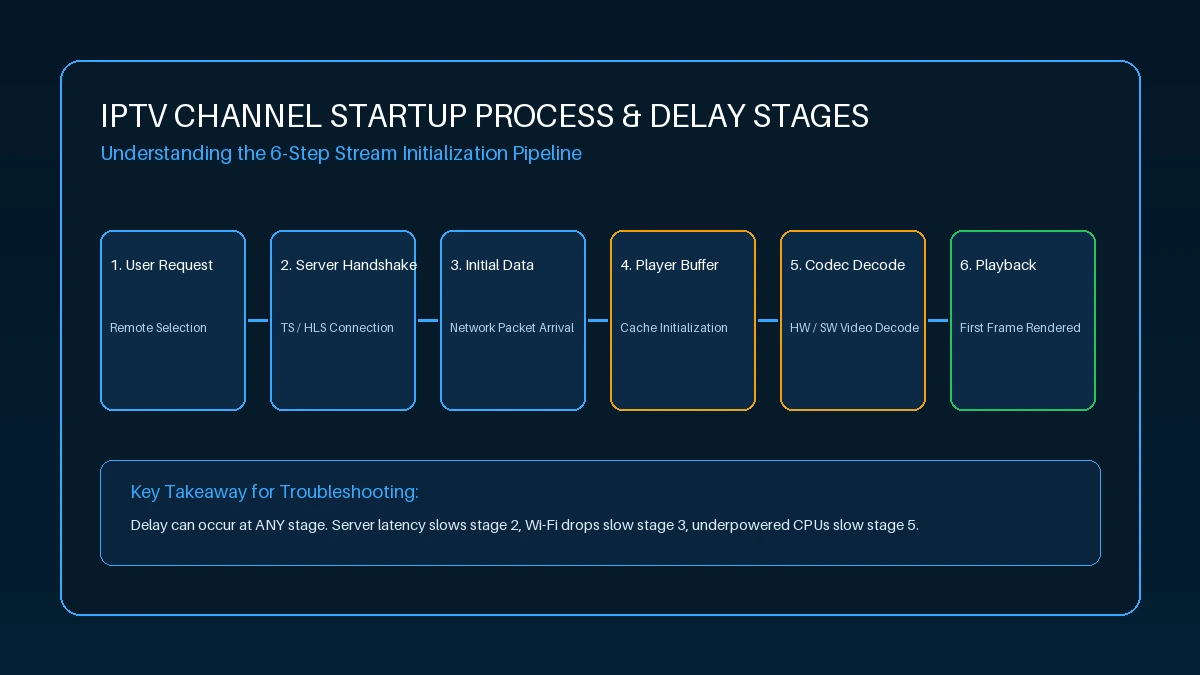 IPTV channel startup process and stream initialization stages
Slow Channel Switching vs IPTV Buffering
It is essential to distinguish slow channel switching from IPTV buffering, as they represent entirely different operational problems.
- Slow Channel Switching (Startup Latency): Happens before playback starts. You select a channel, and there is a 3 to 10 second delay before first frame appears. Once started, it plays smoothly.
- IPTV Buffering (Mid-Stream Freezing): Happens during active playback. The channel opens quickly, but every few minutes video pauses or stutters because incoming data cannot keep up.
- Black Screen (No Video / Stream Timeout): Channel is requested, but player fails to receive data altogether.
- Audio/Video Sync Issues: Stream starts quickly, but audio lags behind or leads video.
| Issue | When It Occurs | Primary Cause | Effective Fix |
|---|---|---|---|
| Slow Channel Switching | At initial channel selection | High network latency, large buffer size, slow keyframe arrival | Reduce buffer size, use 5GHz/Ethernet, enable HW decoding |
| IPTV Buffering | Mid-way through playback | Insufficient bandwidth, ISP throttling, peak server load | Speed up network, use Ethernet, change server route |
| Black Screen / Timeout | At channel selection | Dead stream URL, server socket failure, offline stream | Check channel source, refresh playlist, contact support |
| Audio/Video Desync | Continuously during playback | Audio codec mismatch, TV frame processing delay | Adjust audio offset in player settings, reboot device |
How to Test Why IPTV Channels Are Switching Slowly
Run this 8-step diagnostic procedure to isolate the cause of slow channel switching.
Test 1: Try Several Different Channels
Zap through 10 to 15 channels across categories to observe whether all channels switch slowly or if delay is limited to specific channel groups.
Test 2: Measure Approximate Startup Time
Observe how long a channel takes from clicking until video plays:
- Under 1.5 seconds: Excellent zapping speed.
- 2 to 4 seconds: Acceptable IPTV zapping speed.
- 5 seconds or longer: Slow channel switching requiring optimization.
Test 3: Compare a Fast Channel With a Slow Channel
Find one channel that loads quickly and another that loads slowly. Note resolutions (720p vs 4K). If HD loads instantly while 4K lags, hardware decoder or network bandwidth is bottleneck.
Test 4: Test Another IPTV Player
Install a secondary player (TiviMate or IPTV Smarters Pro) and load your playlist. If zapping speed improves, your original player settings were at fault.
Test 5: Test Another Device
Install your playlist on a secondary device (smartphone or laptop on same Wi-Fi). If channels zap instantly on your smartphone but lag on Smart TV, your Smart TV processor is bottleneck.
Test 6: Try Ethernet Instead of Wi-Fi
Connect an Ethernet cable directly from router to streaming device. If channel switching speed improves, Wi-Fi latency was primary culprit.
Test 7: Test HD vs 4K
Switch between HD (1080p) feeds and 4K feeds of same content to observe extra time 4K takes to initialize.
Test 8: Test at Different Times
Test switching speed during off-peak hours versus peak hours (8 PM to 11 PM). If zapping is fast in morning but sluggish at night, network congestion or server load is involved.
Experience REALM IPTV
Upgrade your entertainment with ultra-stable, anti-freeze streaming. Access premium live channels, sports, and VOD on all your favorite devices.
How to Make IPTV Channel Switching Faster
Use these 15 practical solutions to drastically improve your IPTV zapping speed.
- Restart IPTV Application: Force close your IPTV app completely and re-open it to clear background memory and refresh API sockets.
- Restart Streaming Device: Rebooting your Smart TV, Firestick, or Android box flushes system RAM and refreshes video decoders.
- Restart Router: Unplug router for 30 seconds and plug back in to clear internal router memory and reset stale NAT tables.
- Use Stable Ethernet Connection: Hardwiring streaming device with Ethernet cable eliminates Wi-Fi jitter and reduces ping latency.
- Move Closer to Wi-Fi Router: If Ethernet is impossible, reduce physical distance between router and device to strengthen wireless signal.
- Prefer 5 GHz Wi-Fi: Switch device to 5 GHz Wi-Fi band for higher bandwidth and fewer channel interference delays.
- Reduce Local Network Congestion: Pause large background downloads or torrent activity on other home devices consuming router processing power.
- Close Unnecessary Applications: Close unused background applications on Android TV or Fire OS to free up RAM and CPU cycles.
- Keep IPTV Player Updated: Update IPTV app to latest release to benefit from optimized video decoding engines and bug fixes.
- Clear Application Cache: Navigate to device settings > Apps > [Your IPTV Player] and select Clear Cache to remove temporary junk files.
- Adjust Buffer Settings: If internet connection is fast and stable, setting buffer size to Small or None in player settings produces near-instant zapping.
- Test Decoder Settings: Experiment with decoder modes in app settings by changing Decoder from Software (SW) to Hardware (HW) or HW+.
- Avoid Overloading Older Hardware: If using an older Smart TV or 1st gen stick, avoid forcing 4K streams and stick to 1080p HD feeds.
- Compare HD and 4K Streams: Test both HD and 4K versions of a channel, choosing HD for casual channel surfing and 4K for dedicated viewing.
- Contact Provider Support: If specific channels consistently take an abnormally long time to load despite an optimized setup, report channel names to your provider's support team.
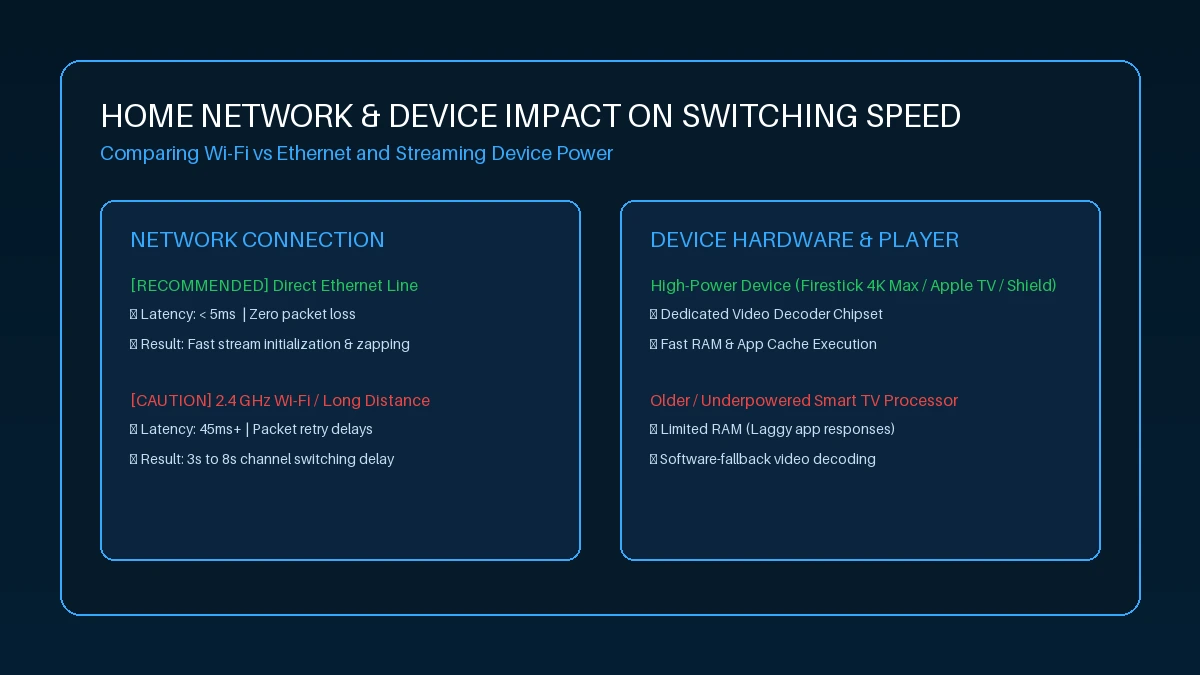 Home network connection and streaming device impact on channel zapping speed
How to Improve IPTV Zapping Speed on Smart TVs
Smart TVs (Samsung Tizen, LG webOS, Android TV) provide convenience, but built-in processors are often less powerful than standalone streaming devices.
To optimize zapping speed on Smart TVs:
- Disable TV Picture Processing: Turn off features like motion smoothing that add extra frame-rendering delay.
- Use Ethernet over Wi-Fi: Plug Smart TV directly into router via Ethernet.
- Keep TV Firmware Updated: Patch built-in media decoders by keeping TV system software updated.
- Uninstall Unused TV Apps: Keep system memory lean by removing unused Smart TV apps.
- Consider External Streaming Stick: If native TV apps remain sluggish, adding a dedicated device using our device setup guide transforms channel zapping speed.
How to Improve IPTV Channel Switching on Firestick
Amazon Firestick is extremely popular for IPTV, but limited storage and background app activity can slow down channel zapping over time.
To optimize Firestick zapping performance:
- Maintain Free Storage: Keep at least 2 GB of free internal storage space.
- Clear App Cache Regularly: Clear cache in Settings > Applications > Manage Installed Applications.
- Turn Off Featured Content: Disable background video previews on home screen.
- Use USB Ethernet Adapter: Add an OTG Ethernet adapter to eliminate Wi-Fi latency.
- Use Dedicated IPTV App: Pair your Firestick with a high-performance player like TiviMate or IPTV Smarters Pro, as detailed in our guide to best IPTV players.
How to Improve IPTV Channel Switching on Android TV and TV Boxes
Android TV boxes (Nvidia Shield, Chromecast with Google TV, Formuler boxes) offer unmatched hardware capability for live television.
To achieve maximum zapping speed on Android TV:
- Enable Hardware Acceleration: In app settings, select Hardware Decoding (HW) for video and audio streams.
- Set App Priority to High: Prevent battery optimization features from throttling your IPTV app in background.
- Use Gigabit Ethernet: Utilize high-speed Ethernet ports for near-zero packet latency.
- Manage Internal Storage: Keep internal memory clear by storing media files on external USB drives.
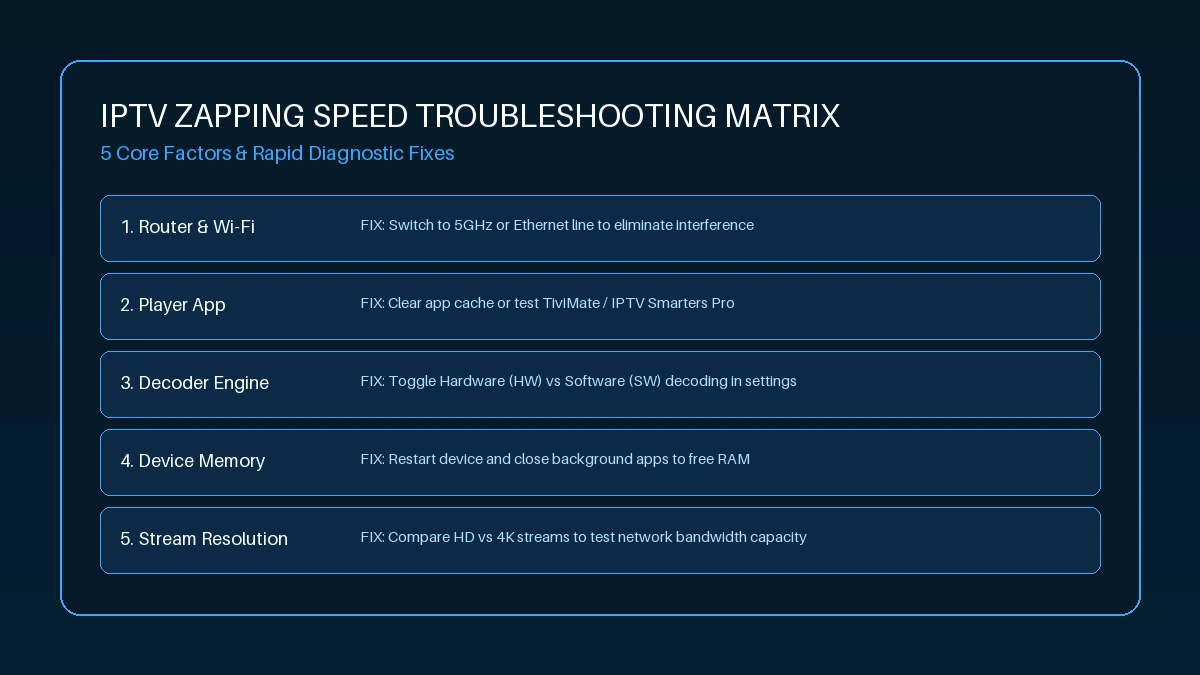 IPTV zapping speed troubleshooting matrix and diagnostic fixes
When the IPTV Provider May Be the Problem
While local network and device optimizations solve most channel delay issues, there are instances where streaming provider infrastructure is responsible:
- Universal Lag Across Devices & Networks: If channel switching takes 8+ seconds on Smart TV, smartphone, and PC simultaneously—even on mobile data—provider authentication or stream server is slow.
- Peak Hour Latency Spikes: If channels zap instantly in morning but lag at 8 PM every night, provider edge servers are struggling with peak capacity.
- Misconfigured Stream GOPs: If a specific channel feed was encoded with incorrect keyframe intervals at source, every user experiences startup delays on that channel.
- Slow EPG Data Sync: If your IPTV app pauses to fetch uncompressed EPG guide data when changing channels, server-side EPG bottlenecks cause delays.
When evaluating providers, look for infrastructure built for low latency. Review our complete IPTV buying guide to learn how server stability impacts daily viewing.
Quick Checklist for Faster IPTV Channel Switching
Use this quick diagnostic checklist whenever channel changes feel sluggish:
- ☐ Restart IPTV App: Force close and re-open player.
- ☐ Restart Device: Reboot Smart TV, Firestick, or Android box.
- ☐ Restart Router: Power-cycle home router.
- ☐ Test Ethernet: Connect wired line to eliminate Wi-Fi latency.
- ☐ Switch to 5 GHz Wi-Fi: If wireless is mandatory, use 5 GHz.
- ☐ Lower Buffer Size: Reduce player buffer settings to Small or None.
- ☐ Enable HW Decoding: Select Hardware decoding in app settings.
- ☐ Clear App Cache: Clear temporary cache files in device settings.
- ☐ Free Storage Space: Maintain at least 2 GB of free storage on device.
- ☐ Test Another Channel: Determine if delay is universal or channel-specific.
- ☐ Test Another Player: Try TiviMate or IPTV Smarters Pro.
- ☐ Check HD vs 4K: Compare switching speeds between 1080p and 4K feeds.
Frequently Asked Questions
Final Thoughts: Achieving Instant Channel Switching in 2026
Slow IPTV channel switching does not have to ruin your live television experience. By understanding the 8-stage stream initialization pipeline, distinguishing startup latency from mid-stream buffering, and systematically optimizing your network, streaming device, and IPTV player, you can achieve lightning-fast zapping speed.
For the ultimate streaming experience, pair a well-optimized home network with a high-performance subscription service like RealMIPTV. Explore our transparent pricing plans, check our comprehensive channel lineup, or visit our FAQ section to learn how our low-latency infrastructure delivers rapid channel zapping across all your favorite devices.