How to Watch IPTV on Apple TV: Best Apps & Complete Setup Guide (2026)

Few streaming devices match the fluid navigation, video decoding power, and premium user experience of Apple TV. Whether you own an Apple TV HD or an Apple TV 4K powered by Apple's Bionic processors, your device is fully capable of serving as a centralized hub for live television and on-demand entertainment.
However, setting up IPTV on tvOS differs from Android TV or Amazon Fire OS. Because Apple maintains strict App Store guidelines, Apple TV does not feature pre-installed IPTV portals, nor does it allow sideloading untrusted application files. Instead, streaming live TV on Apple TV requires pairing a verified IPTV player application from the App Store with an active IPTV subscription.
In this guide, you will learn how IPTV functions on tvOS, required hardware and network credentials, compatible IPTV player applications, step-by-step installation instructions, EPG configuration, optimization tips for Apple TV 4K, and effective troubleshooting steps for common playback issues.
Can You Watch IPTV on Apple TV?
Yes, you can watch IPTV on Apple TV. However, Apple TV does not function as an independent IPTV content provider out of the box.
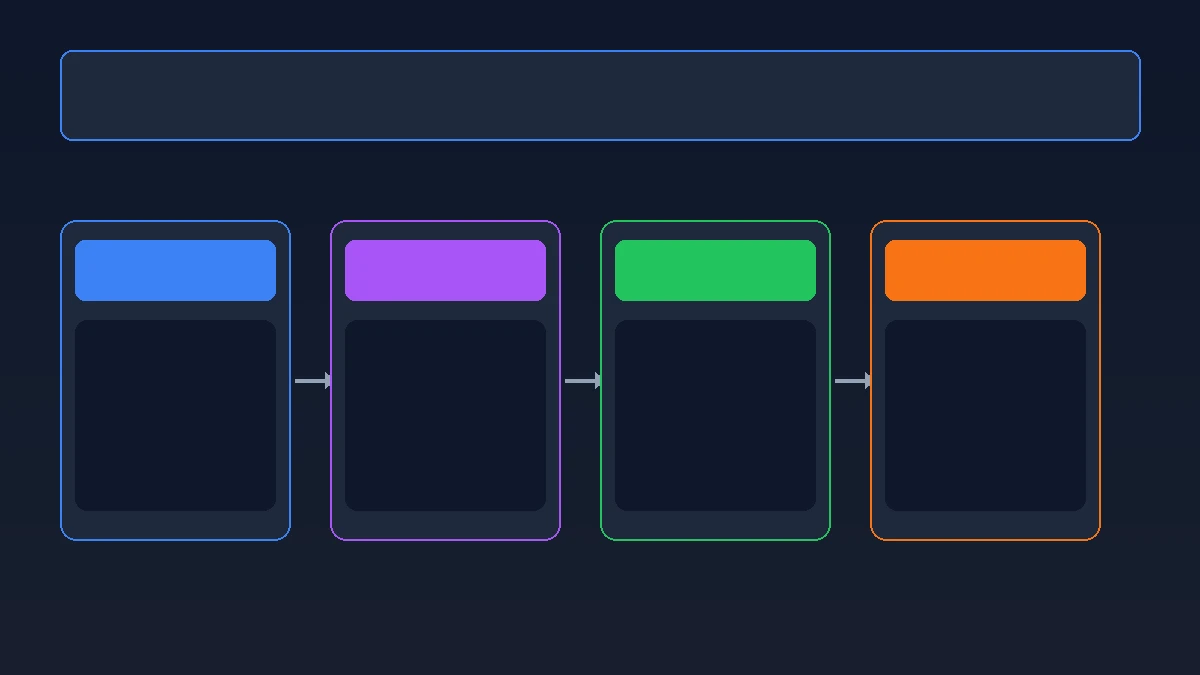
Instead, watching live television through your Apple TV relies on a four-part streaming ecosystem:
IPTV Service + Compatible IPTV Player App + Apple TV Hardware + Internet Connection
- IPTV Service: The provider (such as RealMIPTV) that supplies access to live channels, VOD content, server connection URLs, and account credentials.
- IPTV Player App: The application installed from the tvOS App Store (such as iPlayTV, GSE Smart IPTV, or IPTV Smarters Pro) that acts as the user interface, reading playlist data and rendering video streams.
- Apple TV Hardware: The streaming box and graphics processor that decodes video packets and outputs signal to your TV display via HDMI.
- Internet Connection: Broadband network transporting video data packets from remote media servers to your home router.
On our official RealMIPTV device setup guide, Apple TV is explicitly listed among supported set-top box platforms. When paired with a robust playlist, tvOS delivers one of the smoothest live TV viewing experiences available in 2026.
What Do You Need to Watch IPTV on Apple TV?
Gather these necessary components before starting your setup:
1. Compatible Apple TV Hardware
You need an Apple TV running tvOS 14.0 or later. While 4th Gen Apple TV HD supports IPTV players, Apple TV 4K (1st, 2nd, or 3rd generation) is recommended due to its faster Bionic processor, dedicated HEVC hardware video decoder, and superior RAM management.
2. Stable Internet Connection
IPTV streams live video over IP data packets. For HD (1080p) streaming, a minimum speed of 15 to 25 Mbps is recommended. For 4K Ultra HD streams, aim for 50 Mbps or higher. Low ping latency and minimal packet jitter are critical for fast channel zapping. Connect your Apple TV via Ethernet cable whenever possible, or use a 5 GHz Wi-Fi network.
3. Active IPTV Subscription
You require an IPTV subscription providing access credentials. When you sign up for RealMIPTV subscription plans, your welcome details provide the access parameters. Depending on your player, you will connect using an M3U Playlist URL, Xtream Codes API (Server URL, Username, Password), or Single Account Login.
4. Compatible IPTV Player Application
You must download a tvOS-compatible IPTV player from the native Apple TV App Store to manage channel organization, EPG grids, favorites, and video rendering.
Apple TV IPTV Setup Overview
How Does IPTV Work on Apple TV?
Understanding IPTV operation on tvOS simplifies configuration. The workflow follows a 5-stage pipeline:
IPTV Service → Login Credentials → IPTV Player App → Apple TV GPU → TV Display
- Credentials Issuance: Your IPTV provider generates secure credentials (M3U URL or Xtream API parameters).
- Data Input: You open your selected IPTV player application on Apple TV and input your account credentials into playlist settings.
- Manifest Download: The player connects to the provider server, downloading channel manifests, category structures, and EPG guides.
- Stream Negotiation: When selecting a channel, the player sends an API request to open the video feed.
- Hardware Decoding: The Apple TV Bionic processor decodes incoming stream data and renders video onto your TV screen.
Keeping the IPTV player (software interface) distinct from the IPTV service (content provider) allows you to easily isolate issues if playback ever encounters friction.
Best IPTV Apps for Apple TV in 2026
The tvOS App Store hosts high-performance IPTV applications offering clean user interfaces and fast hardware acceleration.
The comparison table below outlines leading IPTV applications for Apple TV:
| App Name | tvOS Availability | M3U Support | Xtream Codes API | EPG Guide | User Experience |
|---|---|---|---|---|---|
| iPlayTV | Native App Store | Yes | Yes | Advanced Grid | Premium / Sleek UI |
| IPTV Smarters Pro | Native App Store | Yes | Yes | Full Support | Feature-Rich / Family Friendly |
| GSE Smart IPTV | Native App Store | Yes | Yes | XMLTV Support | Advanced / Highly Customizable |
| Smarters Player Lite | Native App Store | Yes | Yes | Standard Grid | Clean / Lightweight |
| APTV | Native App Store | Yes | Limited | iCloud Sync | Minimalist / Apple-native feel |
Understanding App Differences
When selecting an IPTV app for your Apple TV, consider your viewing habits:
- Simple / Minimalist Players: Apps like APTV focus on lightweight design and rapid channel startup. They suit users wanting straightforward live channel switching without complex menus.
- Advanced Multi-Playlist Players: Applications like iPlayTV and GSE Smart IPTV cater to power users. They support multiple provider playlists, custom EPG offsets, and detailed channel sorting.
- Feature-Rich Family Players: IPTV Smarters Pro provides structured tabs for Live TV, Movies, TV Series, and Parental Controls for shared households.
No single player is universally superior; the ideal choice depends on whether you prioritize UI sleekness, playlist customization, or effortless multi-category navigation.
 Apple TV IPTV Setup Flow and Connection Architecture
How to Install an IPTV App on Apple TV
Installing an IPTV application on Apple TV is straightforward using the built-in tvOS App Store. Follow these step-by-step instructions:
Step 1: Open the Apple TV App Store
Turn on your Apple TV and navigate to home screen using your Siri Remote. Select the App Store icon.
Step 2: Search for a Compatible IPTV Player
Click Search at top of screen. Type the name of your desired player (e.g., iPlayTV, IPTV Smarters Pro, or GSE Smart IPTV).
Step 3: Download and Install the Application
Select application from search results and click Get or Download.
Step 4: Open the Player Application
Once installation completes, click Open or launch the app from your Apple TV home screen.
Step 5: Select Connection Method
Upon launching the application, select your login method: Xtream Codes API (recommended for structured live TV and VOD) or M3U Playlist URL.
Experience REALM IPTV
Upgrade your entertainment with ultra-stable, anti-freeze streaming. Access premium live channels, sports, and VOD on all your favorite devices.
How to Add RealMIPTV to an IPTV Player on Apple TV
This section provides the procedure for configuring your RealMIPTV service inside a tvOS IPTV player application.
Step 1: Locate Your RealMIPTV Access Credentials
When subscribing to RealMIPTV, check your welcome email or account dashboard. Gather your three core Xtream API parameters:
- Server URL / Host: (e.g., http://domain-name.com:port)
- Username: Your assigned account username.
- Password: Your assigned account password.
Note: If your player requires an M3U link instead, use the M3U URL provided in your subscription summary.
Step 2: Access Playlist Manager in Your App
Open your installed IPTV app on Apple TV. Navigate to Settings > Playlists (or click Add Playlist / Add User).
Step 3: Choose Xtream Codes API Login
Select Xtream Codes API. This connection method is superior to standard M3U because it automatically categorizes Live TV, VOD Movies, TV Series, and EPG data cleanly.
Step 4: Enter Account Parameters
Using Siri Remote (or Apple TV Remote app on iPhone for easy pasting), enter your credentials:
- Playlist Name: Enter RealMIPTV.
- Server URL: Enter full host URL.
- Username: Enter account username.
- Password: Enter account password.
Step 5: Save and Load Playlist Data
Click Add Playlist, Save, or Login. The player will connect to server and download channel indexes, VOD metadata, and EPG data.
Step 6: Start Watching Live Television
Once data importing finishes, return to main dashboard. Click Live TV to browse channel categories and start viewing.
 Apple TV IPTV Application Player Configuration Screen
How to Set Up the EPG on Apple TV
An Electronic Program Guide (EPG) displays channel schedules, program descriptions, and air times.
When connecting via Xtream Codes API, most tvOS players automatically fetch and map the EPG. If connecting via raw M3U URL or missing guide data:
- Verify EPG URL: In player playlist settings, enter your XMLTV EPG link if supplied separately and click Update EPG.
- Adjust Timezone Offset: If listings appear shifted, navigate to EPG Settings and adjust Timezone Shift (+/- hours) to match local time.
- Clear EPG Cache: Use Refresh EPG or Clear Guide Cache in app settings to resolve temporary sync delays.
How to Watch Live TV on Apple TV With IPTV
Navigating live TV on Apple TV with the Siri Remote is smooth and responsive:
- Category Browsing: Channels are organized in logical folders (News, Sports, Entertainment, Regional).
- EPG Grid View: Switch to EPG View to view multi-channel timeline schedules.
- Channel Zapping: Press Up/Down on Siri Remote trackpad or directional ring to switch channels quickly.
- Favorites: Highlight any channel and hold Select button to save it to your Favorites category.
- Channel Search: Use Search icon to quickly locate specific channels by name or region.
How to Watch Movies and TV Series on Apple TV
If your package includes Video on Demand (VOD), modern Apple TV players provide a clean interface:
- VOD Tabs: Select Movies or Series tab from main dashboard.
- Category Filtering: Filter titles by genre, release year, or recently added.
- Playback Controls: Use Siri Remote touch surface to scrub scenes, toggle subtitles, or select audio tracks.
Apple TV vs Apple TV 4K for IPTV
Choosing between Apple TV HD and Apple TV 4K impacts overall streaming performance:
| Hardware Generation | Processor | Max Resolution | Video Acceleration | Network Interface | Zapping Speed |
|---|---|---|---|---|---|
| Apple TV HD (4th Gen) | A8 Chip | 1080p Full HD | H.264 / Basic HEVC | 10/100 Ethernet & Wi-Fi 5 | Standard (~2–4 sec) |
| Apple TV 4K (1st Gen) | A10X Fusion | 4K UHD (HDR10) | Hardware HEVC | Gigabit Ethernet & Wi-Fi 5 | Fast (~1–2 sec) |
| Apple TV 4K (2nd Gen) | A12 Bionic | 4K UHD (Dolby Vision) | Advanced HEVC / AV1 | Gigabit Ethernet & Wi-Fi 6 | Ultra-Fast (<1 sec) |
| Apple TV 4K (3rd Gen) | A15 Bionic | 4K UHD (HDR10+) | Hardware HEVC / AV1 | Gigabit Ethernet & Wi-Fi 6 | Instant (<1 sec) |
Real-World Performance Impact
Owning an Apple TV 4K does not automatically upscale SD streams to true 4K resolution; video quality depends on source stream bitrate.
However, the GPU and hardware video decoders in Apple TV 4K (2nd/3rd Gen) provide distinct advantages:
- Instant Video Decoding: Hardware H.265 decoding minimizes initial buffering latency.
- Smooth 60fps Motion: Sports broadcasts render with fluid motion without frame drops.
- Flawless UI Navigation: Playlists with 20,000+ items scroll smoothly without lag.
 Apple TV 4K Streaming Setup and Performance Optimization
How to Get Better IPTV Streaming Quality on Apple TV
Apply these practical recommendations to maximize streaming stability:
1. Use Wired Ethernet
Connecting your Apple TV directly to your router via Cat6 Ethernet cable eliminates Wi-Fi jitter and packet retries.
2. Use 5 GHz Wi-Fi
If wireless is necessary, connect to the 5 GHz or Wi-Fi 6 band to avoid crowded 2.4 GHz interference.
3. Reduce Network Congestion
Pause heavy background downloads on other household devices while watching live broadcasts.
4. Keep tvOS Updated
Go to Settings > System > Software Updates to keep core decoding frameworks optimized.
5. Keep Player App Updated
Regularly update your IPTV player in Apple TV App Store for performance enhancements.
6. Enable Match Frame Rate
Go to Settings > Video and Audio > Match Content. Turn on Match Frame Rate to eliminate video judder by matching native broadcast frame rates (50Hz / 60Hz).
IPTV on Apple TV Not Working? Common Problems and Fixes
Use this troubleshooting matrix for common playback issues:
IPTV App Won't Install
- Fix: Update tvOS in Apple TV Settings and check available internal storage space.
Playlist Fails to Load
- Fix: Verify exact spelling of server URL, username, and password. Copy and paste credentials using iPhone Apple TV Remote app.
Channel Shows Black Screen
- Fix: Switch Video Decoder mode in app settings (e.g., from Native Player to VLC/Hardware Player). If only one channel fails, see our guide on slow IPTV channel switching.
Frequent Buffering
- Fix: Use wired Ethernet, restart home router, and check minimum speed. For buffering diagnostics, review our IPTV troubleshooting guide.
Missing EPG Data
- Fix: Refresh EPG in player settings and confirm Apple TV clock settings are automatic.
Audio and Video Out of Sync
- Fix: Turn off motion smoothing in TV picture settings and adjust app Audio Offset.
Stream Works on Phone but Not Apple TV
- Fix: Ensure active connection limit is not exceeded; close stream on mobile before launching on Apple TV.
How to Improve IPTV Channel Switching on Apple TV
To minimize channel zapping delays:
- Reduce Player Buffer: In app settings, set Buffer Size to Small or None for fast connections.
- Enable HW Decoding: Turn on Hardware Decoding in playback settings.
- Use Ethernet: Wired connection eliminates wireless handshake latency.
- Select Efficient Player: Apps like iPlayTV utilize native tvOS AVPlayer frameworks for fast decoding.
For in-depth analysis on stream initialization pipelines, see our detailed article on IPTV channel switching speed.
Is IPTV Legal on Apple TV?
IPTV is a transport technology streaming television signals over internet protocol networks.
Legality depends on content rights and service authorization:
- Technology Neutrality: Apple TV hardware and App Store IPTV player apps are 100% legal technology tools.
- Content Rights: Users must access streams through legitimate, authorized subscription providers.
- Responsible Usage: RealMIPTV operates in compliance with digital service standards. Users should select authorized platforms.
Note: This guide does not promote or provide access to illegal streaming sources or piracy services.
RealMIPTV Apple TV Setup Checklist
☐ Apple TV connected to internet via Ethernet or 5 GHz Wi-Fi ☐ Compatible IPTV player app installed from tvOS App Store ☐ RealMIPTV credentials available from welcome summary ☐ Xtream Codes API selected in playlist settings ☐ Playlist successfully loaded and channel list indexed ☐ EPG guide updated and showing current listings ☐ Live TV tested for smooth playback and sound sync ☐ Match Frame Rate enabled in Apple TV Video settings ☐ tvOS firmware and IPTV player updated to latest release
Frequently Asked Questions
Final Thoughts: Enjoying Premium Live Streaming on Apple TV
Setting up IPTV on Apple TV delivers one of the most responsive live television experiences available in 2026. By choosing a high-performance tvOS player app, configuring credentials via Xtream API, connecting through a reliable network, and enabling frame rate matching, you can enjoy seamless 4K and HD television in your living room.
To get started with premium live streaming, explore our transparent RealMIPTV pricing plans, check our comprehensive channel lineup, read our complete installation guide, or contact our dedicated support team for personalized setup assistance.