IPTV Black Screen but Audio Works: Causes and Fixes
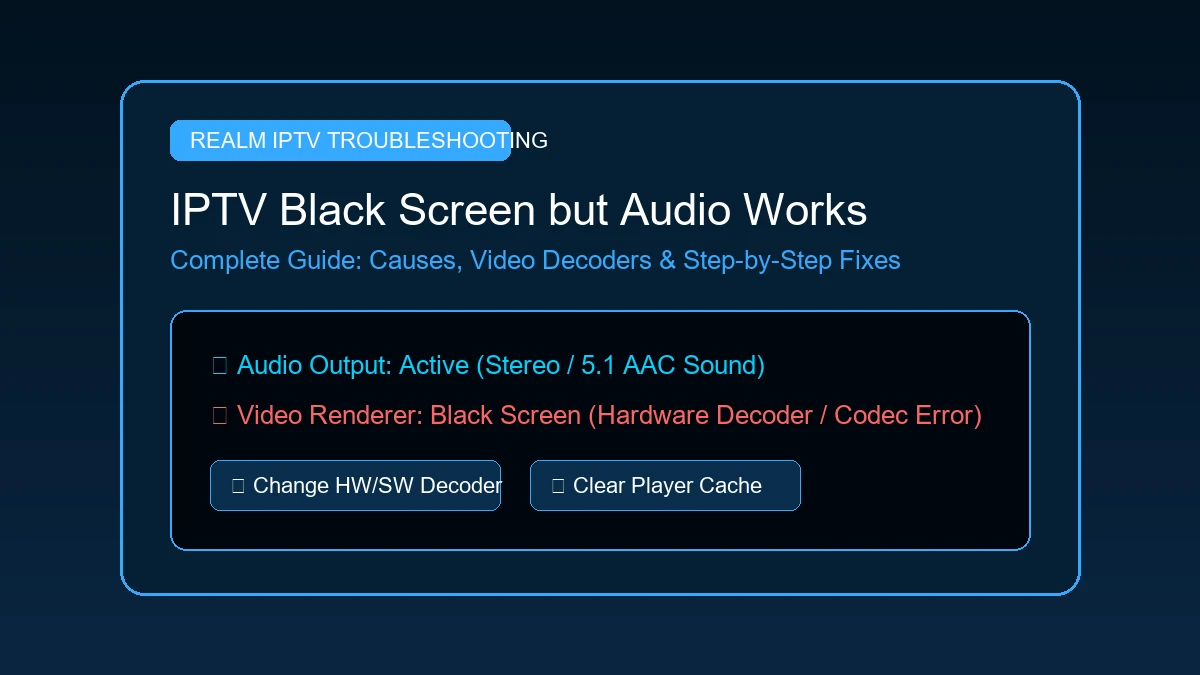
You tune into your favorite live TV channel or sports broadcast, press play, and hear clear sound coming from your speakers—but the screen remains pitch black. This issue, commonly known as IPTV black screen but audio works, is one of the most frequent technical problems experienced by IPTV users across Smart TVs, Amazon Firesticks, Android TV boxes, and Apple TV devices.
When IPTV has sound but no picture, it can be confusing. Because you can clearly hear stadium noise, commentary, or show dialog, your internet connection is obviously delivering data to your device. The problem is not a total connection drop. Instead, your IPTV player application has successfully decoded the audio stream track, but the video stream track is failing to render on your TV display.
Whether you are dealing with IPTV channels black screen across all channels or an isolated IPTV video not showing issue on a single 4K stream, this comprehensive 2026 guide explains why this happens and provides 11 step-by-step technical fixes to get your picture working again.
Why Does IPTV Have Sound but No Picture?
To understand why IPTV audio works but screen is black, it helps to know how live media streams are packaged and processed by your playback device.
A digital IPTV stream consists of separate data channels bound together in a single container format (such as TS, M3U8, or MP4):
- The Audio Track: Usually compressed using AAC, MP3, or Dolby Digital (AC3) codecs. These audio codecs require minimal CPU/GPU processing power to decode.
- The Video Track: Compressed using heavy video codecs like H.264 (AVC), H.265 (HEVC), or AV1. These require substantial hardware decoding power and specific graphics driver support.
- The Metadata Track: Contains Electronic Program Guide (EPG) data, subtitle tracks, and channel headers.
When your media player attempts to play a channel, your device's hardware chip (GPU) and software engine process these streams simultaneously. If the video decoder encounters an unsupported video format, corrupt stream frame header, graphics memory leak, or invalid DRM/HDCP handshake, it drops the video output entirely while allowing the lightweight audio track to play uninterrupted.
As a result, your IPTV screen is black but sound works perfectly in the background.
Common Causes of an IPTV Black Screen
Before diving into step-by-step fixes, review this comparison matrix identifying common causes and their visual indicators:
| Underlying Cause | What You Will Observe | Primary Recommended Fix |
|---|---|---|
| Video Decoder Mismatch | Audio plays smoothly, but screen stays pitch black on certain feeds | Change player decoder from HW to HW+ or SW |
| Unsupported Video Codec | Older TV/box plays 1080p fine, but 4K HEVC streams show black screen | Test an HD/720p version of the channel |
| Corrupted App Cache | Black screen started suddenly after hours of continuous viewing | Clear IPTV player application cache in settings |
| Temporary App Memory Leak | Player control UI is visible, but video viewport remains black | Force-close and restart the IPTV application |
| Stream-Specific Source Error | Only 1 specific channel is black while all other channels work fine | Report channel to service provider & use backup feed |
| HDMI / HDCP Handshake | Black screen on external dongle (Firestick/Android box) with sound | Re-seat HDMI cable or switch HDMI TV ports |
| Outdated App / OS Firmware | Occurs after recent system update or app version mismatch | Update IPTV application and device OS firmware |
Fix 1: Restart the IPTV Player
The fastest initial troubleshooting step for any IPTV black screen fix is a simple app restart. Over extended viewing sessions, IPTV applications like TiviMate, IPTV Smarters, or XCIPTV accumulate video frame buffers in system RAM. A minor memory leak can cause the video rendering canvas to fail while audio keeps playing.
Follow these steps:
- Press the Home button on your remote to exit the player.
- Open your device's task switcher or navigate to Settings > Applications > Manage Installed Applications.
- Select your IPTV application and choose Force Stop.
- Relaunch the application and test the channel again.
Restarting flushes temporary video buffer queues and re-initializes the player's graphic canvas.
Fix 2: Restart Your Streaming Device
If restarting the app does not resolve the issue, perform a full system reboot of your streaming hardware. Rebooting resets graphics memory, network sockets, and system-level video decoders.
- Amazon Firestick / Fire TV: Go to Settings > My Fire TV > Restart, or hold down the Select and Play/Pause buttons together for 5 seconds.
- Android TV / Google TV: Navigate to Settings > System > Restart.
- Apple TV: Go to Settings > System > Restart.
- Smart TV (LG WebOS / Samsung Tizen): Unplug the TV power cord from the wall outlet for 30 seconds, then plug it back in (soft-off via remote does not completely clear system RAM).
Once your device restarts, open your IPTV player and check if video playback returns.
Fix 3: Try Another IPTV Player
If audio works but video remains black across multiple channels, the problem may lie within your specific IPTV player application's video engine.
IPTV services supply raw stream data, but different applications handle video rendering in distinct ways:
- Some players excel at H.264 video decoding but struggle with 10-bit H.265 HEVC feeds.
- Certain player apps fail to render streams with non-standard aspect ratios or interlaced (1080i) video signals.
If you suspect an app-level bug, install an alternative compatible application (such as TiviMate, IPTV Smarters Pro, XCIPTV, or GSE Smart IPTV) and load your credentials. For an in-depth breakdown of compatible applications across platforms, review our complete guide on the best IPTV players in 2026.
If video plays correctly in a second application, your original app's configuration or decoder settings were responsible for the black screen.
Fix 4: Change Hardware / Software Decoding
This is the single most effective technical solution for resolving an IPTV black screen with sound. Most modern IPTV applications allow users to choose how video signals are processed:
- Hardware Decoding (HW): Uses your streaming device's physical graphics processor (GPU) to decode video. It is highly power-efficient and essential for 60 FPS and 4K playback. However, if the GPU lacks firmware support for a specific stream format, it results in a black screen.
- Hardware+ Decoding (HW+): An enhanced hardware decoder used by applications like MX Player and TiviMate that leverages advanced GPU acceleration extensions.
- Software Decoding (SW): Bypasses the GPU entirely and uses your device's CPU to process video frames. Software decoding is universally compatible with almost all video formats, but consumes more CPU power.
How to Toggle Decoders:
- Open your IPTV player settings menu.
- Navigate to Playback, Video, or Decoder settings.
- Locate options for Live TV Decoder or VOD Decoder.
- Switch the setting from HW to HW+ or SW (Software).
- Save settings, return to the channel, and test playback.
Pro Tip: If switching to Software (SW) decoding fixes the black screen, your device's GPU chip lacks native hardware support for that specific channel's video codec.
Fix 5: Test Another Channel
Before spending time adjusting system settings, determine whether the black screen affects a single channel or your entire channel lineup.
Scenario A: Only 1 Channel Has a Black Screen
If 99% of your channels display video normally and only a single channel yields sound without picture, the issue is almost certainly a source-side encoding error at the broadcast server level. The provider's feed for that specific channel may have lost its video pin.
- Action: Switch to an alternate backup feed of the same channel if available, or report the specific channel to customer support.
Scenario B: Every Channel Has a Black Screen
If every channel in your playlist produces audio without video, the issue is client-side—pointing to your player application, device GPU, video decoder settings, or display output.
Fix 6: Check Your Device and Display Connection
If you stream using an external device (such as a Firestick, Android TV box, or Apple TV) plugged into an HDMI port on your television, an HDCP (High-bandwidth Digital Content Protection) handshake failure can block video while permitting audio.
Work through these hardware checks:
- Re-seat the HDMI Cable: Unplug the HDMI cable from both your streaming box and TV, then plug it back in securely.
- Switch HDMI Ports: Move your streaming device to a different HDMI port on your TV (e.g., switch from HDMI 1 to HDMI 2).
- Bypass HDMI Switchers: If you use an external HDMI switcher, soundbar pass-through, or AV receiver, temporarily connect your streaming device directly to your TV.
- Check Display Resolution: Navigate to your streaming device settings (Settings > Display & Sounds > Display) and ensure your resolution is set to Auto or matches your TV's native capability (e.g., 1080p 60Hz).
Fix 7: Update the IPTV Player
Outdated IPTV applications can develop video playback issues when providers update their server streaming protocols or video container headers.
To update your application:
- Official App Store: Open Google Play Store, Amazon Appstore, or Apple App Store, search for your IPTV player, and click Update if a new version is available.
- Sideloaded Apps: If using apps installed via Downloader, visit the official developer website to check for updated release APKs.
Updating ensures your player contains the latest video codecs, bug fixes, and GPU decoding libraries.
Fix 8: Update Your Streaming Device
System firmware updates for FireOS, Android TV, tvOS, and Smart TV operating systems frequently include critical graphics driver patches and media framework improvements.
- Firestick: Settings > My Fire TV > About > Check for Updates.
- Android TV: Settings > System > About > System Update.
- Apple TV: Settings > System > Software Updates.
Installing the latest operating system updates prevents compatibility conflicts between system graphics drivers and IPTV video decoders.
Fix 9: Clear the IPTV App Cache
Over time, your IPTV player stores temporary video frame segments, channel logos, and EPG databases in cache memory. Corrupted cache files can interfere with video frame buffers, resulting in a black screen during channel initialization.
How to Clear Cache:
- Open your device Settings.
- Select Applications (or Apps).
- Choose Manage Installed Applications and click your IPTV player.
- Select Clear Cache.
Important Warning: Select Clear Cache ONLY. Do NOT select Clear Data unless you want to erase your saved playlists, login credentials, and player configuration settings.
Fix 10: Test a Lower-Quality Stream
High-bitrate 4K Ultra HD and 1080p 60 FPS streams demand high GPU decoding throughput. If you attempt to play a 4K HEVC stream on an older Firestick or budget Smart TV that lacks 4K hardware decoding capabilities, the device will decode the audio track but display a black video viewport.
If your subscription provides multi-quality options for channels (e.g., 4K, FHD, HD, SD):
- Select the HD (720p/1080p) variant of the channel.
- If the HD stream displays video properly while 4K remains black, your hardware or TV display cannot decode that specific 4K video stream format.
If you suspect your stream bandwidth is dropping packet data during video playback, read our guide on internet speed requirements for IPTV.
Fix 11: Check Your Internet Connection
While an IPTV no picture but sound issue is usually video-decoder related, severe network packet loss can occasionally corrupt heavy video keyframes while allowing light audio packets through.
Quick network verification steps:
- Test Network Speed: Run a speed test app on your streaming device to verify consistent download speed.
- Switch to 5 GHz Wi-Fi: Ensure your streaming box is connected to 5 GHz Wi-Fi rather than congested 2.4 GHz frequencies.
- Use Ethernet: Connect a Cat6 Ethernet cable directly to your router to eliminate wireless packet loss.
Experience REALM IPTV
Upgrade your entertainment with ultra-stable, anti-freeze streaming. Access premium live channels, sports, and VOD on all your favorite devices.
IPTV Black Screen on Firestick
Amazon Firestick devices are incredibly popular, but older models (like Fire TV Stick Lite or 2nd Gen Firestick) have strict memory and GPU limits.
If you experience an IPTV black screen on Firestick:
- Force Stop & Clear Cache: Go to Settings > Applications > Manage Installed Applications > [Your App] > Force Stop, then Clear Cache.
- Toggle Decoder in Player: Change player video decoder setting from HW to HW+ or Software (SW).
- Free Up FireOS Storage: Ensure your Firestick has at least 1.5 GB of free internal space under Settings > My Fire TV > About > Storage.
- Reboot Firestick: Hold Select + Play/Pause for 5 seconds.
For full setup instructions on FireOS, refer to our comprehensive guide on how to watch IPTV on Firestick.
IPTV Black Screen on Smart TV
If you experience an IPTV black screen on Smart TV (LG WebOS, Samsung Tizen, or Android TV):
- Unplug TV Power: Completely disconnect your Smart TV power cord from the wall outlet for 30 seconds to flush TV system RAM.
- Update TV Firmware: Check your TV settings for system software updates.
- Test External Streaming Device: Built-in Smart TV processors are often underpowered compared to dedicated streaming dongles. If built-in TV apps frequently display black screens, connect a Firestick 4K or Apple TV. Read our guide on IPTV setup on Apple TV for an alternative high-performance setup.
IPTV Black Screen on Android TV
On Android TV boxes (such as NVIDIA Shield, Xiaomi Mi Box, or Chromecast with Google TV):
- Enable HW+ Decoder: Android TV handles hardware video extensions exceptionally well when HW+ is enabled in TiviMate or MX Player.
- Match Frame Rate: Enable "Match Frame Rate" inside player settings to prevent screen refresh conflicts.
- Check Display Refresh Rate: Set display output to 1080p 60Hz or 4K 60Hz in Android system settings.
How to Tell If the Problem Is Your Device or the IPTV Stream
Follow this simple diagnostic flow to pinpoint the exact root cause:
- If Only 1 Channel Is Affected: The issue is a source feed error at the provider server level. Switch to a backup channel feed or report it to support.
- If ALL Channels Are Affected: The issue is a client device or player error. Change video decoders (HW to HW+/SW), clear player app cache, restart your device, or test another player.
- If Another Player App Fixes It: The original player app or its current configuration was responsible.
- If HD Works but 4K Does Not: Your streaming box or TV lacks native hardware decoding for that 4K HEVC format.
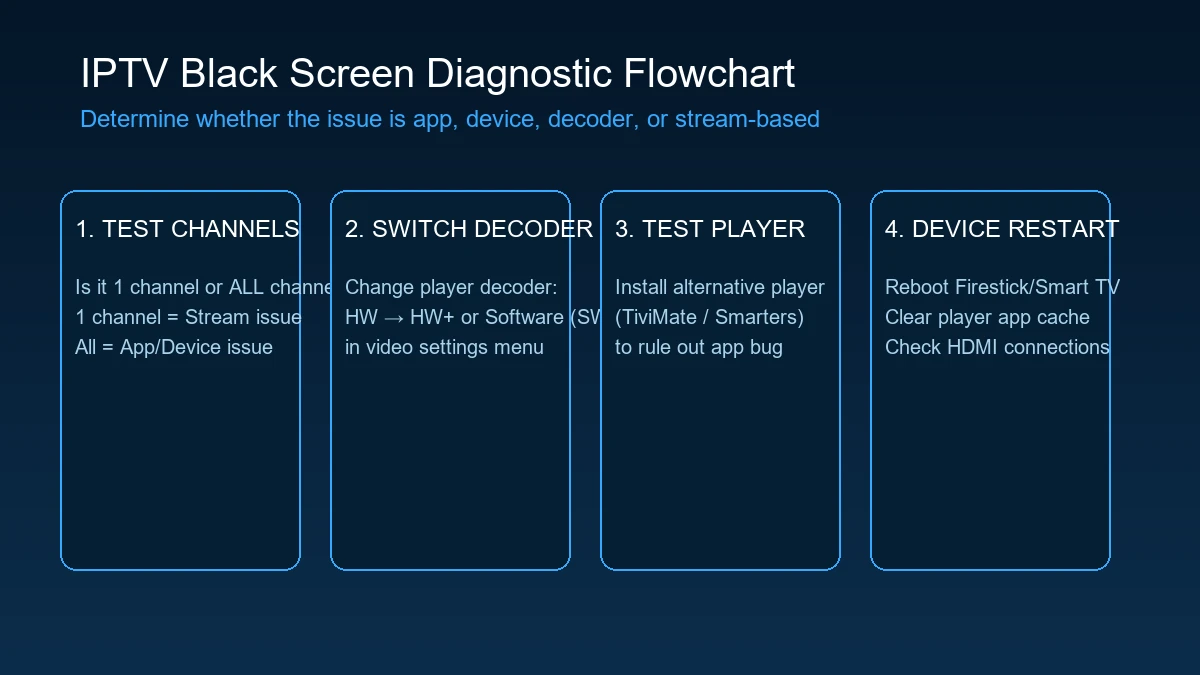 IPTV Black Screen Troubleshooting Flowchart
Quick IPTV Black Screen Troubleshooting Checklist
Use this handy checklist to systematically resolve picture issues:
- ☐ Restart IPTV Player App: Force stop and relaunch application.
- ☐ Restart Streaming Device: Reboot Firestick, Android TV, or Smart TV.
- ☐ Test Other Channels: Verify if issue affects 1 channel or all channels.
- ☐ Change Video Decoder: Switch decoder settings from HW to HW+ or SW.
- ☐ Clear App Cache: Reclaim graphics memory under device app settings.
- ☐ Check HDMI Cable: Re-seat HDMI connection and test alternate TV ports.
- ☐ Update IPTV App: Install latest application release.
- ☐ Update Device Firmware: Install latest operating system updates.
- ☐ Test Second IPTV Player: Verify if video works in TiviMate, Smarters, or XCIPTV.
- ☐ Test Lower Quality Feed: Switch from 4K/FHD stream to HD version.
- ☐ Check Network Connection: Verify 5 GHz Wi-Fi or Ethernet stability.
- ☐ Contact Provider Support: Report channel if single feed remains black.
When Should You Contact RealMIPTV Support?
If you have completed the local troubleshooting steps above and continue to experience a black screen, reaching out to customer support is the next step.
Contact support when:
- A specific channel displays a black screen with audio across multiple devices and different player applications.
- You suspect your playlist account requires a server-side line reset.
- You need updated M3U playlist URLs or Xtream Codes API server addresses.
What Info to Provide Support:
To help our technical team resolve your issue quickly, provide:
- Your subscription username or order number.
- The exact name of the affected channel(s).
- Your streaming device model (e.g., Firestick 4K Max, LG Smart TV).
- The name of your IPTV player application (e.g., TiviMate, IPTV Smarters).
- Whether the issue affects one channel or all channels.
- Whether you tested changing video decoders (HW / SW).
You can submit support requests anytime through our official contact support page.
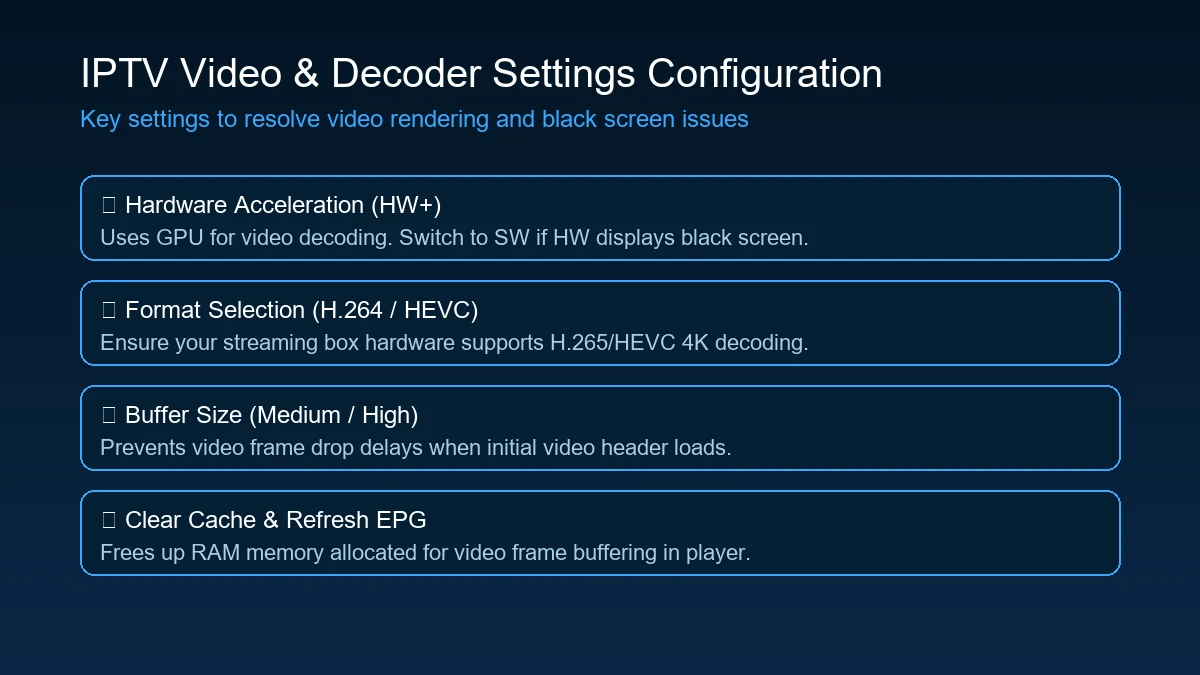 IPTV Video Decoder Settings Configuration
Why Choose RealMIPTV for IPTV Streaming?
Experiencing technical playback issues with unreliable providers can be frustrating. At RealMIPTV, we prioritize stream stability, updated video container compatibility, and transparent technical support.
Why users choose RealMIPTV:
- Enterprise Server Infrastructure: Engineered for low latency, fast zapping, and stable stream delivery.
- Compatible Across All Players & Devices: Full support for M3U playlists and Xtream Codes API logins across Firestick, Android, Apple TV, and Smart TVs.
- High-Bitrate 1080p & 4K Streams: Crisp picture quality optimized for modern 60 FPS displays.
- Accurate EPG Guides: Continuously synchronized program schedules for global channels.
- Flexible Plans: Choose multi-room or single-connection plans on our RealMIPTV pricing page.
- 24/7 Assistance: Helpful support team ready to assist with account setup and playlist configuration.
If you are looking to start your own streaming business, we also offer scalable IPTV reseller plans with dedicated management panels.
Experience REALM IPTV
Upgrade your entertainment with ultra-stable, anti-freeze streaming. Access premium live channels, sports, and VOD on all your favorite devices.
Frequently Asked Questions
Conclusion: Resolve Your IPTV Black Screen Issue
A black screen with working audio is a frustrating glitch, but it is almost always fixable with simple decoder adjustments or cache maintenance. By understanding the difference between audio and video decoding, testing alternate player applications like TiviMate, switching hardware decoders (HW to SW), and keeping your streaming device updated, you can eliminate black screen errors and enjoy uninterrupted live TV viewing.
If you need further setup guidance, review our step-by-step RealMIPTV installation instructions, explore our full channel lineup, check our frequently asked questions, or select a high-stability subscription on our pricing page to upgrade your live TV experience today!