How to Watch IPTV on Firestick in 2026: Complete Setup Guide
Amazon Firestick remains one of the most popular, cost-effective, and versatile streaming devices in the world. Whether you are using a standard Fire TV Stick, a Fire TV Stick 4K, or the Fire TV Stick 4K Max, turning your Amazon streaming dongle into a full-fledged live television hub is simple when configured properly.
If you are wondering how to watch IPTV on Firestick, this comprehensive guide provides everything you need to know. We will walk you step-by-step through preparing your Amazon Fire TV device, choosing a compatible IPTV player, configuring M3U playlists and Xtream Codes API credentials, setting up an Electronic Program Guide (EPG), optimizing FireOS performance settings, and troubleshooting common issues like buffering or black screens.
To enjoy high-quality live television and Video on Demand (VOD), users require an authorized IPTV subscription along with a compatible media application. Premium providers such as RealMIPTV are specifically optimized to work seamlessly across Fire TV hardware. By following this guide, you will have your Firestick configured for buffer-free streaming in just a few minutes.
What Do You Need to Watch IPTV on Firestick?
Before beginning the IPTV Firestick setup process, it is important to understand the essential components required to stream live TV on your Amazon device.
To set up an efficient streaming environment, you need five core items:
- Amazon Firestick or Fire TV Device: A compatible streaming device connected to your television via HDMI and powered by FireOS.
- Stable High-Speed Internet Connection: Wi-Fi (preferably 5 GHz) or a wired Ethernet adapter providing reliable bandwidth.
- Authorized IPTV Subscription: Active subscription credentials from a reliable provider like RealMIPTV.
- Compatible IPTV Player App: A dedicated media application designed to parse stream URLs and render live video feeds.
- Playlist or Server Credentials: An M3U URL, M3U8 link, or Xtream Codes API login (Server URL, Username, and Password).
Understanding the Difference: Device vs. Player vs. Service
Beginners often confuse the three separate layers involved in watching IPTV. Here is a clear breakdown:
- The Hardware (Firestick): The physical device manufactured by Amazon that plugs into your TV. It runs the operating system, handles video decoding, and processes wireless network signals.
- The Application (IPTV Player): Software installed on your Firestick (such as TiviMate, IPTV Smarters, or XCIPTV) that serves as the visual user interface. The player itself does not contain any channels or content; it is simply a media viewer.
- The Content Provider (IPTV Service): The server infrastructure and subscription service, such as RealMIPTV service, that delivers the actual live channel streams, EPG guide data, and VOD library to your player.
Having all three components properly configured ensures high-definition video playback without frustrating interruptions.
Is IPTV Compatible With Firestick?
Yes, IPTV is fully compatible with Amazon Fire TV hardware. Because FireOS is built upon the Android platform, Firestick devices support a wide array of high-performance media engines and streaming protocols.
Here is how different Amazon Fire TV models handle live IPTV streaming in 2026:
- Amazon Fire TV Stick (Lite & HD): Ideal for standard 720p and 1080p Full HD live streams. While capable, hardware memory is limited, so lightweight players are recommended.
- Amazon Fire TV Stick 4K: Features upgraded quad-core processing power, expanded RAM, and hardware decoding for HEVC (H.265) 4K streams.
- Amazon Fire TV Stick 4K Max: Equipped with Wi-Fi 6 support, faster CPU clock speeds, and extra memory headroom, making channel zapping and EPG loading lightning-fast.
- Fire TV Cube & Fire TV Smart TVs: Built-in Ethernet options and powerful multi-core chips make these top-tier choices for heavy household streaming.
Regardless of which model you own, the core steps on how to install IPTV on Firestick remain virtually identical across all FireOS versions.
How to Prepare Your Firestick for IPTV
Before installing your preferred media player, you should prepare your Firestick settings to ensure smooth app operation and setup.
Follow this practical checklist to ready your device:
- Connect to a High-Speed Network: Ensure your Firestick is connected to your main home Wi-Fi network (5 GHz band recommended) or an official Amazon Ethernet Adapter.
- Check Available Storage: Navigate to Settings > My Fire TV > About > Storage and verify that you have at least 1.5 GB to 2.0 GB of free space available for app caching and buffer storage.
- Update FireOS Software: Go to Settings > My Fire TV > About > Check for Updates to ensure your device is running the latest security patches and video codecs.
- Enable Necessary App Permissions: Open Settings > My Fire TV > Developer Options (or Settings > Applications) depending on your FireOS version. If using tools to install applications from official application stores or browser downloads, ensure appropriate app installation permissions are toggled ON.
Safety & Integrity Note: Always download IPTV player applications from recognized app stores, official developer repositories, or verified direct links. Avoid unverified third-party APK sites that may package modified binaries containing adware or malware.
How to Install an IPTV Player on Firestick
Installing a Firestick IPTV player is straightforward. There are two primary methods used to install players on Amazon devices: directly through the official Amazon Appstore or using the popular Downloader utility tool.
Here is the step-by-step setup procedure:
- Power on your Firestick and navigate to the Home Screen.
- Select the Find / Search icon (magnifying glass) on the main menu bar.
- Type "Downloader" or your desired IPTV player name into the search box.
- Select the official Downloader app from the search results (identifiable by its orange tile) and click Get or Download.
- Once installed, launch the Downloader app and grant necessary storage permissions when prompted.
- Enter the official download URL or quick code provided by your player developer (or search for compatible players directly) to download and install your chosen application.
While many popular players are available—such as TiviMate, IPTV Smarters Pro, XCIPTV, and GSE Smart IPTV—we recommend reviewing our detailed breakdown of the best IPTV players for Firestick in 2026 to select the exact application that matches your layout preferences.
How to Add Your IPTV Subscription to Firestick
Once your IPTV player is installed on your Firestick, the next step is connecting it to your subscription service. Most modern players support two standard connection methods: M3U Playlist URLs and Xtream Codes API credentials.
Using M3U Playlist
An IPTV M3U Firestick connection relies on a structured playlist file URL provided by your subscription service.
- Open your installed IPTV player application on Firestick.
- Select Add Playlist, Add M3U URL, or Playlist File.
- Enter a friendly name for your playlist (e.g., "RealMIPTV").
- Carefully type or paste the complete M3U Playlist URL supplied in your subscription email.
- Select Next or Insert and allow the application a few moments to download channel lists and category structures.
Using Xtream Codes
The Xtream Codes Firestick integration method is often preferred because it automatically organizes live channels, movies, TV series, and EPG data into clean categories.
- Launch your IPTV player and choose Add User or Xtream Codes API.
- Enter the Server URL (including the port number if required, e.g.,
http://line.realmstream.com:8080). - Enter your assigned Username.
- Enter your assigned Password.
- Click Add User or Login. The player will connect to the provider's API servers and import your channel lineups automatically.
Always verify your credentials carefully. If you suspect an input typo, double-check your account details on the official RealMIPTV setup instructions page.
How to Set Up RealMIPTV on Firestick
Setting up RealMIPTV Firestick setup is fast and fully supported across all Amazon Fire TV models. RealMIPTV provides high-speed stream servers designed specifically for low latency, crisp 1080p/4K resolution, and fast channel switching.
Follow this simple guide to pair RealMIPTV with your Firestick:
- Obtain Active Credentials: Subscribe to a suitable plan on our RealMIPTV pricing plans page. You will receive your M3U playlist link, EPG guide URL, and Xtream Codes API details via email.
- Launch Your Favorite Player: Open TiviMate, IPTV Smarters, or your preferred player on Firestick.
- Input RealMIPTV Server Information: Select Xtream Codes login and enter the server URL, username, and password provided with your account.
- Sync EPG & Channel Categories: Allow the initial synchronization to complete. RealMIPTV's server infrastructure automatically organizes live sports, entertainment, regional channels, and VOD titles.
- Start Watching: Select any channel from our extensive RealMIPTV channel list to start streaming immediately.
If you encounter any questions during installation, our dedicated customer support team is available 24/7 to provide step-by-step assistance.
Experience REALM IPTV
Upgrade your entertainment with ultra-stable, anti-freeze streaming. Access premium live channels, sports, and VOD on all your favorite devices.
How to Add EPG on Firestick
An Electronic Program Guide (EPG) transforms your Firestick into a traditional TV viewing experience by displaying current schedules, upcoming shows, episode titles, and channel listings.
What is EPG and Why is it Essential?
Without an EPG, channels are listed only by name. An active EPG provides timeline grids, programming descriptions, and current time indicators. Most advanced IPTV players will pull EPG data automatically when using Xtream Codes API login. However, if your player requires manual EPG input:
- Open your player settings and select EPG Sources or TV Guide.
- Click Add EPG Source.
- Paste the XMLTV EPG URL provided by your service (e.g.,
http://line.realmstream.com:8080/xmltv.php?username=...). - Save the source and trigger an Update EPG Data sync.
Troubleshooting Missing EPG Data
If program guides appear blank or display "No Information":
- Timezone Mismatch: Go to player settings and adjust the EPG Time Shift (+1h, -1h, etc.) to match your local timezone.
- Manual Refresh: Force an EPG update inside the player settings menu.
- Storage Limit: Clear cache in Firestick settings if the TV guide database fails to save due to low device memory.
How to Organize IPTV Channels on Firestick
A major advantage of streaming Fire TV Stick IPTV is customizable channel management. High-tier IPTV services provide thousands of channels, which can feel overwhelming without organization.
Use these player features to streamline your viewing:
- Favorites List: Press and hold the Select button on your Firestick remote over any channel to add it to your "Favorites" folder for instant access.
- Category Hiding: Disable regional channel groups or foreign language folders that you do not watch.
- Search Functionality: Use the built-in search option in your player to instantly locate live sporting events, news channels, or specific movie titles.
- Recently Watched: Most players store your last 10 viewed channels, allowing rapid toggling between two live games.
Best Firestick Settings for IPTV Streaming
To achieve maximum stability and avoid IPTV buffering Firestick issues, optimize these core FireOS and player settings:
| Setting Category | Recommended Configuration | Purpose / Benefit |
|---|---|---|
| Wi-Fi Band | 5 GHz Wireless or Wired Ethernet | Minimizes wireless interference and packet loss. |
| Video Decoder | Hardware Acceleration (HW+) | Uses Firestick GPU for smoother 60fps playback. |
| Buffer Size | Small or Medium (0.5s – 2.0s) | Balances stream stability with instant channel zapping. |
| Display Resolution | Auto / 1080p 60Hz or 4K 60Hz | Matches native TV refresh rate to avoid motion jitter. |
| Background Apps | Force Stop unused applications | Reclaims RAM memory for the active IPTV player. |
Keeping your Firestick software updated and regularly clearing app cache prevents system sluggishness over time.
What Internet Speed Do You Need for IPTV on Firestick?
Internet bandwidth is one of the most critical factors influencing live TV quality. Because live streams broadcast in real-time without long pre-loading buffers, your internet connection must remain stable and consistent.
Here is practical speed guidance per active streaming screen:
| Streaming Resolution | Minimum Required Speed | Recommended Speed for Stability |
|---|---|---|
| Standard Definition (SD) | 5 Mbps | 10 Mbps |
| High Definition (HD 720p/1080p) | 10 Mbps | 15–20 Mbps |
| Full HD 60fps Sports | 15 Mbps | 25 Mbps |
| 4K Ultra HD (HEVC) | 25 Mbps | 50+ Mbps |
Note that speed alone is not the only metric. Latency, jitter, packet loss, and local network congestion play equal roles. If multiple family members are gaming, downloading files, or streaming simultaneously, increase your overall home bandwidth accordingly. For a deeper breakdown of bandwidth requirements, read our full analysis on internet speed requirements for IPTV.
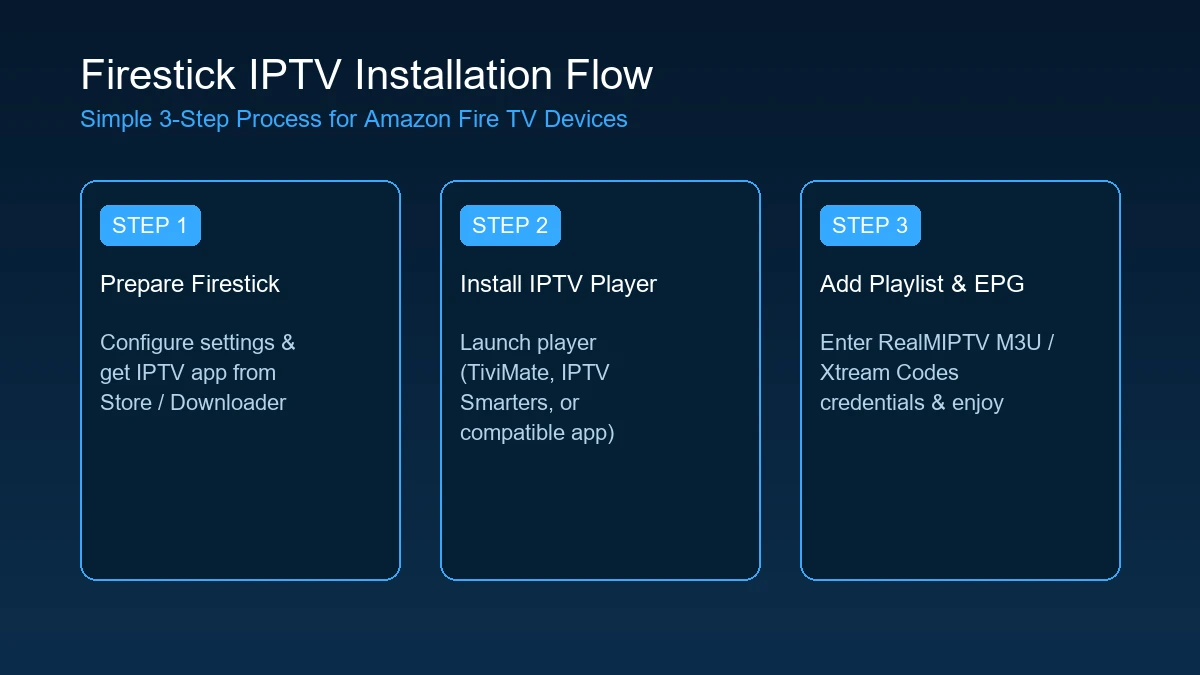 Firestick IPTV Installation Guide
IPTV Buffering on Firestick: Common Causes and Fixes
Experiencing IPTV buffering Firestick interruptions can ruin live sports and entertainment. Buffering occurs when video data arrives slower than your player renders it.
Here are the 10 most common causes and their direct fixes:
- Weak Wi-Fi Signal: Move your Firestick closer to the router or switch from 2.4 GHz to 5 GHz Wi-Fi.
- Network Congestion: Peak evening hours can cause ISP slowdowns; test your internet speed directly on Firestick using speed test apps.
- Insufficient Bandwidth: Pause background downloads or torrents running on other connected household devices.
- Overloaded App Cache: Open Firestick Settings > Applications > Manage Installed Applications > [Your Player] > Clear Cache.
- Low Device Storage: Delete unused Firestick applications to maintain at least 1.5 GB of free space.
- Outdated Player Application: Ensure your IPTV application is updated to its latest stable release.
- Outdated FireOS Firmware: System updates improve media framework codecs and network stack stability.
- Software vs. Hardware Decoding: Toggle between HW, HW+, and SW video decoders in your player settings.
- Slow Channel Switching Delays: Review our technical guide on fixing IPTV channel switching delays to optimize player stream buffer settings.
- Provider Server Bottlenecks: If buffering affects only one channel during a major event while other channels play smoothly, the source feed may be experiencing temporary high server load.
IPTV Not Working on Firestick? Try These Fixes
If your stream drops completely or your player displays an error like "Connection Failed" or "Playlist Cannot Be Loaded," work through this rapid troubleshooting checklist:
- ☐ Restart Your Firestick: Unplug the power adapter for 10 seconds or hold Select + Play/Pause on your remote for 5 seconds to reboot FireOS.
- ☐ Reboot Your Internet Router: Power-cycle your modem/router to clear stale NAT connection tables and refresh IP leases.
- ☐ Verify Login Credentials: Double-check your server URL, username, and password for subtle capitalization errors.
- ☐ Test Wi-Fi Connection: Verify that other apps (YouTube, Netflix) load video properly on the Firestick.
- ☐ Clear App Data: Re-link your playlist after clearing app data if your database file corrupted during a unexpected shutdown.
- ☐ Try an Alternative Compatible Player: If one player fails, test your credentials on another player to isolate app-specific bugs.
- ☐ Cross-Test on Smartphone: Load your playlist on your mobile phone via cellular data or Wi-Fi to confirm if your account is active.
- ☐ Review Service FAQ: Visit our comprehensive frequently asked questions section for account verification steps.
Firestick IPTV vs Smart TV IPTV
Many users debate whether to run IPTV directly through a Smart TV operating system (WebOS, Tizen) or use a standalone Firestick dongle.
Here is a balanced feature comparison:
| Feature | Amazon Firestick | Built-in Smart TV Apps |
|---|---|---|
| App Flexibility | Excellent (Supports TiviMate, Smarters, XCIPTV, Downloader) | Limited (Restricted to native TV store apps) |
| Portability | High (Plug into any TV when traveling) | None (Fixed to one TV unit) |
| System Updates | Frequent FireOS updates & security patches | Infrequent updates after 2–3 years |
| Hardware Processing | Dedicated streaming GPU & quad-core CPU | Often underpowered RAM/CPU on budget TVs |
| Remote Control UI | Ergonomic remote with voice search capability | Standard TV remote (often slow navigating grids) |
| Cost Value | Low initial cost ($25 – $50) | High replacement cost if built-in OS slows down |
For most users, adding a Firestick to a Smart TV provides a vastly superior live streaming experience with broader application choices.
Can You Watch IPTV in 4K on Firestick?
Yes, you can stream 4K Ultra HD IPTV on Firestick, provided four mandatory criteria are met:
- 4K Hardware Compatibility: You must use a Fire TV Stick 4K, Fire TV Stick 4K Max, or Fire TV Cube connected to an HDMI 2.0/2.1 port supporting HDCP 2.2.
- 4K Television Display: Your TV display must natively support 3840x2160 resolution at 60Hz.
- Native 4K IPTV Stream: The channel source provided by your service must be broadcast in true native 4K resolution (not upscaled 720p).
- Sufficient Network Speed: A stable internet line delivering at least 25 to 50 Mbps dedicated to that device is necessary to prevent buffering on high-bitrate HEVC streams.
Simply owning a 4K Firestick will not upscale low-resolution channels to 4K, but it ensures your device hardware handles high-bitrate video streams smoothly without frame drops.
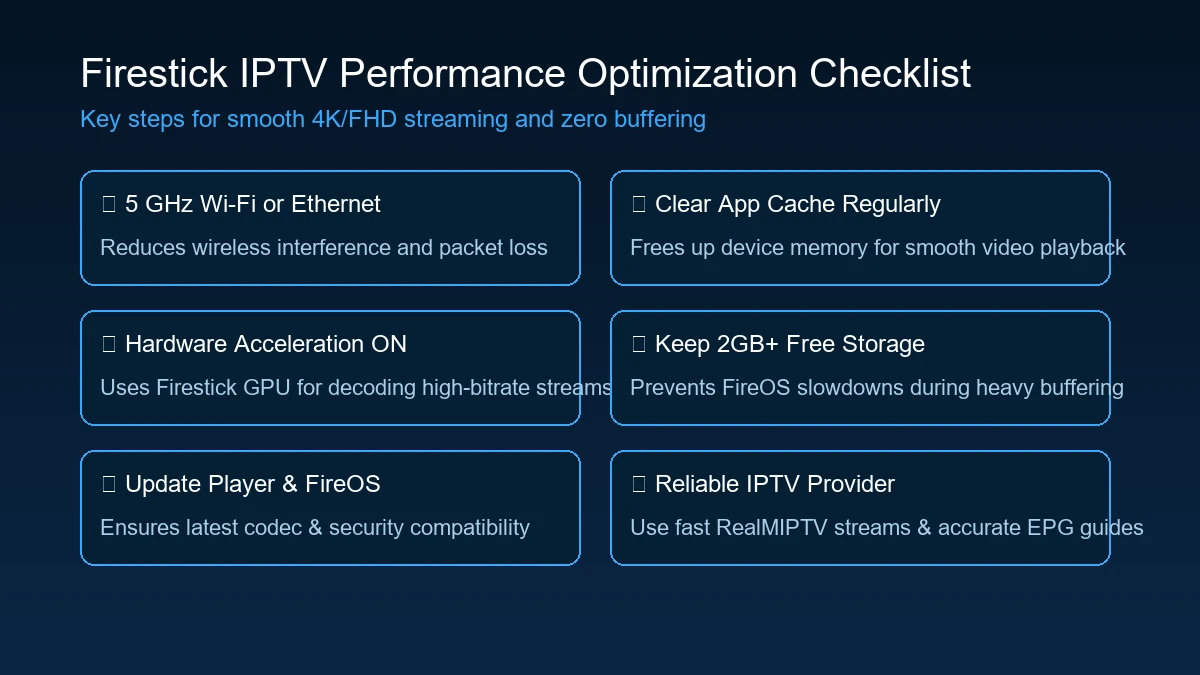 IPTV Firestick Performance Optimization Checklist
How to Improve IPTV Performance on Firestick
Follow this quick performance optimization checklist to keep your Firestick operating at peak efficiency:
- ✓ Use 5 GHz Wi-Fi or Ethernet: Eliminate 2.4 GHz radio frequency interference from household appliances.
- ✓ Maintain 2 GB+ Free Storage: Clear out unused apps and temp files so FireOS can allocate adequate RAM buffer memory.
- ✓ Enable Hardware Acceleration: Set video decoding to HW/HW+ inside your IPTV player settings.
- ✓ Set Up Periodic Device Restarts: Reboot your Firestick at least once a week to clear RAM memory leaks.
- ✓ Disable Unnecessary FireOS Tracking: Turn off background data collection under Settings > Preferences > Privacy Settings to reduce background CPU cycles.
- ✓ Pair With a Reliable Provider: Ensure your IPTV service operates high-bandwidth servers backed by proper load balancing, such as RealMIPTV.
Why Choose RealMIPTV for Firestick?
When choosing an IPTV service for your Amazon Firestick, stability, image quality, and customer support are paramount. RealMIPTV is built from the ground up to deliver an enterprise-grade live TV streaming experience.
Here is why Firestick users trust RealMIPTV:
- Complete Firestick & FireOS Optimization: Compatible with TiviMate, IPTV Smarters, XCIPTV, and all popular Android/FireOS players.
- High-Bitrate 1080p & 4K Streams: Enjoy crystal-clear picture quality across live sports, news, and entertainment.
- Instant Activation & M3U/Xtream Delivery: Get immediate access to your playlist URLs and Xtream Codes login right after subscribing.
- Accurate EPG Guides: Integrated electronic program guides updated continuously for reliable schedule details.
- Flexible Multi-Connection Plans: Select subscription plans tailored for single users or multi-room households on our pricing page.
- Dedicated 24/7 Support: Reach out to our expert team anytime via our contact support page.
If you are exploring business opportunities in live television streaming, we also offer scalable IPTV reseller opportunities with dedicated control panels.
Experience REALM IPTV
Upgrade your entertainment with ultra-stable, anti-freeze streaming. Access premium live channels, sports, and VOD on all your favorite devices.
Frequently Asked Questions
Conclusion: Start Watching IPTV on Firestick Today
Setting up IPTV on Amazon Firestick is one of the effective ways to upgrade your home entertainment system in 2026. By pairing your Fire TV hardware with a feature-rich IPTV player and a high-stability provider like RealMIPTV, you gain instant access to world-class live television, sports, news, and Video on Demand.
To get started today, review our verified RealMIPTV setup instructions, explore our full channel lineup, or select the ideal subscription package on our RealMIPTV pricing plans page. If you are comparing streaming hardware or services, check out our guides on how to choose the best IPTV service or IPTV setup on Apple TV to make an informed choice for your home.