Best IPTV Setup for Sports Streaming in 2026
Live sports represent the absolute ultimate test for any streaming setup. Unlike watching on-demand movies or pre-recorded television shows, live sports streaming demands real-time data delivery, high frame rates, low latency, and rock-solid network stability. A half-second delay or brief buffering wheel during a crucial penalty kick, buzzer-beater shot, or final lap can completely ruin the viewing experience.
Many sports fans make the mistake of assuming that subscribing to a high-speed internet plan alone guarantees smooth streaming. In reality, building the best IPTV setup for sports streaming requires optimizing your entire hardware and software ecosystem—including your streaming device, IPTV player application, local network topology, video decoding settings, TV motion processing, and channel playlist organization.
Whether you follow football, basketball, tennis, motor racing, or combat sports, this comprehensive 2026 guide will walk you through building a high-performance, buffer-free IPTV sports setup from start to finish.
What Makes a Good IPTV Setup for Sports?
Streaming live sports differs significantly from watching standard video content. Because live sports feature fast-moving action across wide camera angles, viewers are far more sensitive to motion blur, frame drops, audio sync issues, and stream buffering.
Here is a checklist of the core elements that define a top-tier IPTV sports streaming setup:
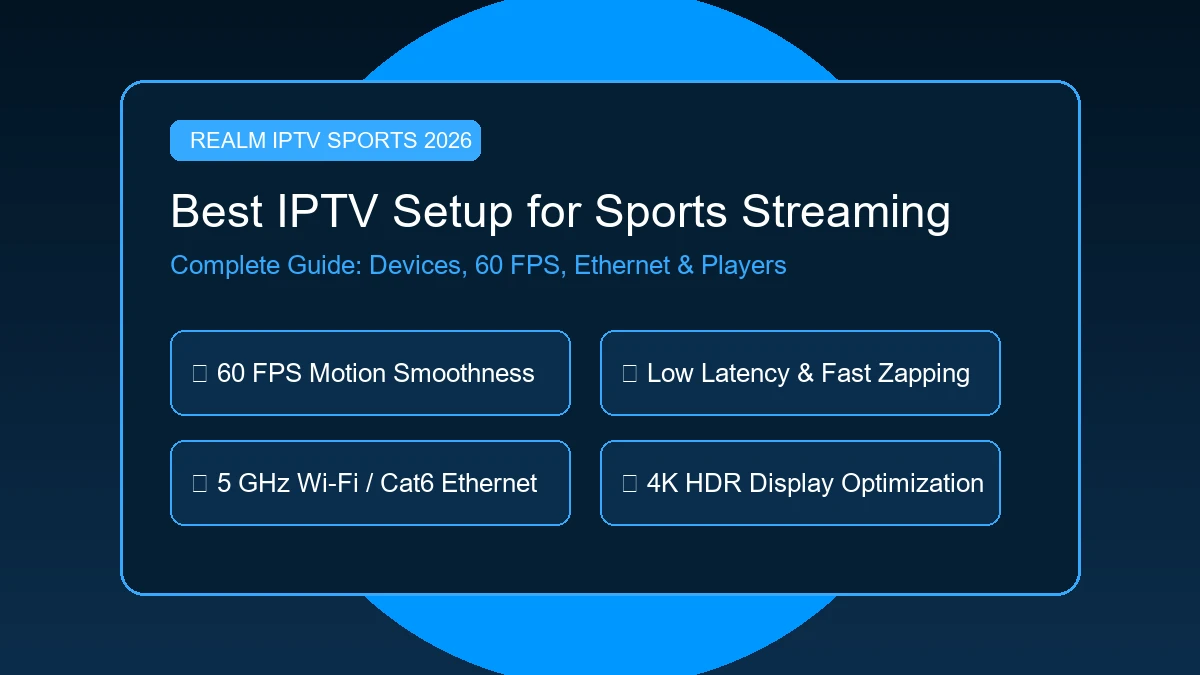
- High Frame Rate (50/60 FPS): Essential for smooth ball motion and fluid camera pans without judder.
- Low Latency Network: Minimizes stream delay relative to real-time satellite or terrestrial broadcasts.
- Fast Channel Switching (Zapping): Allows rapid toggling between simultaneous matches during commercial breaks.
- Dedicated Hardware Decoding: Uses device GPU hardware (HW/HW+) to render high-bitrate video streams efficiently.
- Stable Connection (Wired Ethernet or 5 GHz Wi-Fi): Eliminates wireless interference and packet loss.
- Accurate Electronic Program Guide (EPG): Keeps game kickoff times and channel schedules synchronized.
- Organized Sports Favorites: Streamlines navigation across regional and international sports networks.
By aligning your hardware and software around these principles, you can eliminate frustrating interruptions on match day.
The Best Devices for IPTV Sports Streaming
Choosing the right hardware is the foundation of any best IPTV setup 2026. Your streaming device handles video decoding, network packet processing, and user interface rendering.
Here is how popular device categories perform for live sports streaming:
| Device Category | Sports Performance | Key Advantages | Primary Considerations |
|---|---|---|---|
| Apple TV 4K | Outstanding | Powerful A-series chip, silky smooth UI, top-tier video decoders | Higher initial purchase price |
| Amazon Fire TV Stick 4K / Max | Excellent | Affordable, portable, wide IPTV app support, Wi-Fi 6 on Max | Requires clearing cache periodically |
| Android TV / Google TV | Excellent | High app flexibility, native Google Play Store, smooth UI | Performance varies by TV processor |
| Android TV Box (NVIDIA Shield) | Outstanding | Enterprise GPU decoding, gigabit Ethernet port, multi-view | Higher cost than standard dongles |
| Smart TV (WebOS / Tizen) | Good | Built-in convenience, no extra remote needed | Memory limits & fewer sports player apps |
While any modern 4K streaming box can handle live TV, power users looking for the absolute smoothest experience often prefer dedicated streaming hardware like Apple TV or Firestick 4K Max over built-in Smart TV apps. If you use Amazon hardware, follow our complete guide on how to watch IPTV on Firestick to optimize FireOS settings.
Best IPTV Player for Live Sports
While your subscription service delivers the video stream, your chosen application acts as the control center. Finding the best IPTV player for sports comes down to player features that directly impact live viewing.
Key player features required for live sports include:
- Hardware Acceleration (HW / HW+): Bypasses software decoding to let your device GPU process 60 FPS streams smoothly.
- Multi-Screen / Multi-View Support: Allows viewing 2 to 4 live sports matches simultaneously on a single TV screen.
- Fast Channel Zapping: Pre-buffers audio/video tracks to decrease channel switching times.
- Advanced EPG Integration: Displays match schedules, team matchups, and channel program grids seamlessly.
- Audio Track & Subtitle Selection: Enables toggling between different stadium commentary languages.
Popular applications like TiviMate, IPTV Smarters Pro, XCIPTV, and GSE Smart IPTV support these features to varying degrees. Rather than duplicating general player reviews, examine our dedicated guide on the best IPTV players in 2026 to choose the best software for your device platform.
Internet Speed for Live Sports IPTV
Subscribing to a fast internet package is helpful, but stability matters far more than raw download speed when evaluating the best internet speed for IPTV sports. Live sports streams broadcast in real-time without large pre-cached buffers, making them sensitive to micro-drops in connectivity.
Practical bandwidth guidelines per active sports screen include:
- Standard Definition (SD): 5 Mbps minimum.
- High Definition (HD 720p/1080p 30fps): 10 Mbps per active stream.
- Full HD 1080p (60 FPS Sports): 15–20 Mbps per active stream.
- 4K Ultra HD Sports (HEVC/H.265): 25–50 Mbps per active stream.
Remember that ISP speed tests measure peak throughput, whereas live sports require consistent throughput. Network latency (ping), jitter, and packet loss are critical metrics. If ping times fluctuate wildly, your stream will buffer even on a 500 Mbps connection. For a deeper look at network metrics, consult our comprehensive analysis of internet speed requirements for IPTV.
Wi-Fi vs Ethernet for IPTV Sports
When setting up your main sports viewing area, how you connect your streaming box to your home router directly impacts reliability.
| Connection Feature | Wireless Wi-Fi (5 GHz / Wi-Fi 6) | Wired Cat6 Ethernet |
|---|---|---|
| Convenience | Excellent (No cables required) | Moderate (Requires running cable) |
| Signal Stability | Subject to wall interference & radio noise | 100% stable with zero wireless interference |
| Latency & Jitter | Fluctuates based on household Wi-Fi traffic | Ultra-low, constant ping rates |
| Packet Loss | Possible during heavy network congestion | Virtually non-existent |
| Sports Recommendation | Great for secondary TVs near router | Recommended for primary sports TV |
If running a physical Cat6 Ethernet cable is practical, it provides the most dependable link for live sports. If you rely on Wi-Fi, ensure your device connects to the 5 GHz or Wi-Fi 6 band rather than the congested 2.4 GHz spectrum.
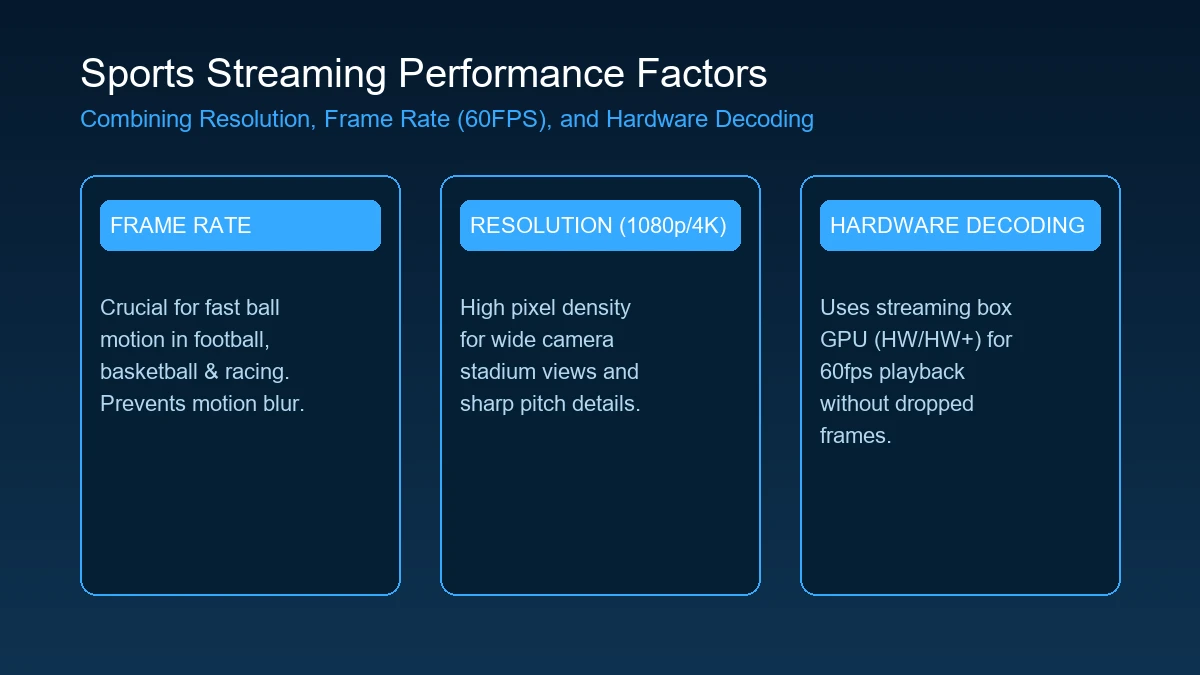 4K 60FPS Sports Streaming Setup
Why 60 FPS Matters for Sports Streaming
Understanding the difference between resolution and frame rate is crucial for building a 4K IPTV sports setup.
- Resolution (1080p vs 4K): Refers to pixel count (detail and sharpness).
- Frame Rate (30 FPS vs 60 FPS): Refers to how many static image frames are displayed per second.
In fast-paced sports like soccer, basketball, ice hockey, tennis, and Formula 1, a ball or car moves rapidly across the screen. At 30 FPS, fast lateral movement can appear blurry, stuttery, or ghosted. At 50/60 FPS, motion appears fluid, crisp, and natural.
Important Distinction: A stream labeled "4K" does not automatically mean it streams at 60 FPS. Conversely, a 1080p 60 FPS stream will often look vastly superior for live sports compared to a compressed 4K 30 FPS feed. Always prioritize high frame rate over raw resolution for live athletic events.
Is 4K Worth It for Live Sports?
Watching live sports in genuine 4K Ultra HD offers incredible detail—letting you spot grass textures on a pitch, crowd details, and jersey numbers clearly from wide stadium camera angles.
However, a true 4K sports experience requires meeting four criteria:
- 4K Display: A 4K TV supporting HDMI 2.0/2.1 and HDCP 2.2.
- Capable Media Box: A device with hardware decoding support for HEVC/H.265 or AV1 4K streams.
- High-Bandwidth Network: At least 25 to 50 Mbps of uninterrupted bandwidth dedicated to that stream.
- Native 4K Source Stream: The provider's feed must originate in native 4K.
A 4K-capable streaming device cannot convert an upscaled 720p broadcast into true 4K. When native 4K feeds are available from your authorized provider, ensure your player hardware acceleration is enabled to decode high-bitrate streams without dropping frames.
Best TV Settings for IPTV Sports
Many default TV settings degrade sports picture quality by introducing input lag or artificial motion artifacts.
To optimize your TV display for live sports:
- Picture Mode: Set your TV to Sports, Standard, or Cinema/Movie. Avoid "Vivid" mode, which oversaturates colors and blows out field lighting.
- Motion Smoothing / Interpolation: Features like Motionflow, TruMotion, or Auto Motion Plus can smooth out 30 FPS video, but set them to low or custom settings. Excessive motion smoothing creates the "soap opera effect" and visual artifacts around fast-moving balls.
- Noise Reduction: Turn off MPEG noise reduction or Digital Clean View, as these filters blur fine pitch details.
- Sharpness: Set sharpness between 0% and 15%. Over-sharpening creates unnatural white halos around players.
- HDR (High Dynamic Range): Enable HDR/Dolby Vision if your TV and source stream support it for richer stadium lighting contrast.
How to Reduce IPTV Buffering During Live Sports
Major sporting events attract millions of simultaneous viewers, placing heavy load on network backbones. If you experience IPTV sports buffering, follow these proven optimization steps:
- Switch to Wired Ethernet: Connect your streaming box directly to your router with a Cat6 cable.
- Use 5 GHz Wi-Fi: If Ethernet is unavailable, disconnect from 2.4 GHz Wi-Fi to eliminate microwave and Bluetooth interference.
- Enable Hardware Acceleration: Open player settings and select HW or HW+ video decoding.
- Adjust Stream Buffer Size: Increase the player buffer to "Medium" or "High" (2 to 5 seconds) to absorb temporary network dips.
- Close Background Applications: Force-stop unused apps on your Firestick or Android TV to free up RAM.
- Reboot Network Equipment: Restart your router and modem before kickoff to clear stale routing tables.
- Pause Household Downloads: Stop game updates or heavy cloud backups on other home computers during the match.
- Check Alternative Channels: Switch to a secondary backup feed if provided by your service.
- Review Speed Stability: Read our step-by-step IPTV buying guide to test provider server infrastructure during peak hours.
How to Get Faster IPTV Channel Switching for Sports
Sports fans frequently flip between channels during halftime, commercial breaks, or when tracking multiple games simultaneously.
Fast channel zapping depends on several factors:
- Player Pre-Buffering: Modern IPTV players like TiviMate feature optimized stream initialization algorithms.
- Network Latency: Lower ping to stream servers reduces connection handshake times.
- M3U vs. Xtream Codes: Using Xtream Codes API login allows players to index stream headers faster than large unorganized M3U files.
- Device RAM: Extra memory headroom allows the player to hold buffer states cleanly.
For in-depth technical solutions on reducing loading delays, explore our guide on fixing slow IPTV channel switching.
Build the Perfect Sports Channel Favorites List
Navigating a list of thousands of channels while a game is underway is inefficient. Organizing an IPTV sports channel setup saves valuable time on match day.
Recommended sports folder categories:
- ⚽ Primary Football / Soccer: Local and international league channels.
- 🏀 Basketball: National and regional basketball networks (read our NBA live streaming guide for sport-specific setups).
- 🏎 Motorsport: Racing, F1, and endurance events.
- 🥊 Combat Sports: Boxing, MMA, and pay-per-view event channels.
- 🎾 Tennis & Golf: Dedicated tour channels.
- ⭐ Matchday Favorites: A curated group of your top 10 most-watched sports channels.
Creating a dedicated "Matchday Favorites" folder puts your key channels just one click away on your remote.
EPG: Why It Matters for Live Sports
An Electronic Program Guide (EPG) is essential for sports fans. It acts as an interactive TV guide, displaying kick-off times, match commentary info, event titles, and channel schedules.
When your EPG is configured correctly:
- You can scroll ahead to see what time a match begins across different timezones.
- You can set match reminder notifications inside compatible players.
- You avoid tuning into the wrong regional channel feed.
If EPG times appear off by an hour, open your IPTV player settings and adjust the EPG Time Shift to align with your local time.
Audio and Picture Sync for Sports
Few things are more frustrating than hearing crowd cheers or referee whistles two seconds before seeing the action on screen.
Common causes of audio/video desync in sports IPTV include:
- Software Decoding Lag: The device CPU falls behind in rendering high-bitrate video while processing audio ahead.
- TV Audio Processing: External soundbars or AV receivers using optical/ARC connections may introduce audio delay.
- Stream Encoding Artifacts: Occasional source-level encoding glitches during live satellite pass-through.
Fixes:
- Switch decoding mode from SW to HW/HW+ in player settings.
- Adjust the Audio Offset / Delay setting inside your player (e.g., +200ms or -200ms) until commentary matches lip movement and stadium sounds.
- Pass audio uncompressed (PCM) to your TV if using external speakers.
Best IPTV Sports Setup by Device
Here is a quick snapshot of optimal configurations tailored by device:
Firestick Setup
- Recommended Device: Fire TV Stick 4K Max or Fire TV Cube.
- Key Config: OTG Ethernet adapter, 5 GHz Wi-Fi, TiviMate or IPTV Smarters app, HW acceleration enabled.
Android TV / Google TV Setup
- Recommended Device: NVIDIA Shield TV Pro or Chromecast with Google TV 4K.
- Key Config: Direct Cat6 Ethernet, match frame rate enabled, player buffer set to Medium.
Smart TV Setup
- Recommended Device: Modern LG WebOS or Samsung Tizen 4K TV.
- Key Config: Wired Ethernet connection, Sports picture mode, motion smoothing set to Low.
Apple TV Setup
- Recommended Device: Apple TV 4K (Wi-Fi + Ethernet version).
- Key Config: Cat6 connection, tvOS compatible player app, Match Content / Frame Rate ON. Read our full guide on IPTV setup on Apple TV for detailed tvOS steps.
Recommended Sports IPTV Setup in 2026
If you want a blueprint for the ideal live sports streaming experience in 2026, here is our recommended configuration:
- Display: 55"+ 4K HDR TV (60Hz/120Hz refresh rate).
- Streaming Hardware: Apple TV 4K or Fire TV Stick 4K Max.
- Network Link: Wired Cat6 Ethernet or 5 GHz Wi-Fi 6 router.
- Bandwidth: 50+ Mbps stable broadband line.
- Player Application: TiviMate or compatible premium player with Multi-View & HW+ decoding.
- Provider Service: High-stability service with M3U/Xtream support like RealMIPTV.
- Organization: Curated Matchday Favorites folder + synchronized EPG guide.
Experience REALM IPTV
Upgrade your entertainment with ultra-stable, anti-freeze streaming. Access premium live channels, sports, and VOD on all your favorite devices.
RealMIPTV Sports Streaming Setup
Pairing your hardware setup with a premium service ensures access to high-bitrate streams, crisp 1080p/4K resolution, and fast server response times. RealMIPTV is designed to support high-demand live TV streaming across all major hardware platforms.
Setting up RealMIPTV for sports is simple:
- Choose a Plan: Select a plan with single or multi-connection support on our RealMIPTV pricing page.
- Review Setup Instructions: Follow our step-by-step RealMIPTV setup guide for Firestick, Smart TV, Android, or Apple TV.
- Explore Channels: Browse our complete RealMIPTV channel lineup to verify coverage for your favorite sports leagues.
- Connect & Customize: Input your Xtream Codes API details into your player, organize your sports favorites, and enjoy smooth playback.
For custom account setups or technical questions, our 24/7 customer support team is always ready to assist.
Quick Sports IPTV Setup Checklist
Use this 12-point checklist before match day:
- ☐ Device Ready: Modern 4K streaming device connected via HDMI.
- ☐ Network Line: Wired Ethernet or 5 GHz Wi-Fi connected.
- ☐ Bandwidth Verified: 15–20 Mbps (Full HD) or 25–50 Mbps (4K) confirmed per stream.
- ☐ Player Installed: Compatible IPTV app installed with HW acceleration active.
- ☐ Subscription Active: M3U / Xtream credentials loaded from RealMIPTV.
- ☐ EPG Synced: TV guide populated with correct local time shift.
- ☐ Favorites List Built: Key sports channels saved to a dedicated folder.
- ☐ TV Settings Set: Picture mode set to Sports/Standard with low motion smoothing.
- ☐ Storage Cleared: At least 1.5 GB of free space on streaming device.
- ☐ Router Power-Cycled: Router rebooted to refresh IP routing tables.
- ☐ App Updated: IPTV player running latest version.
- ☐ Pre-Game Test: Live stream tested 15 minutes before kickoff.
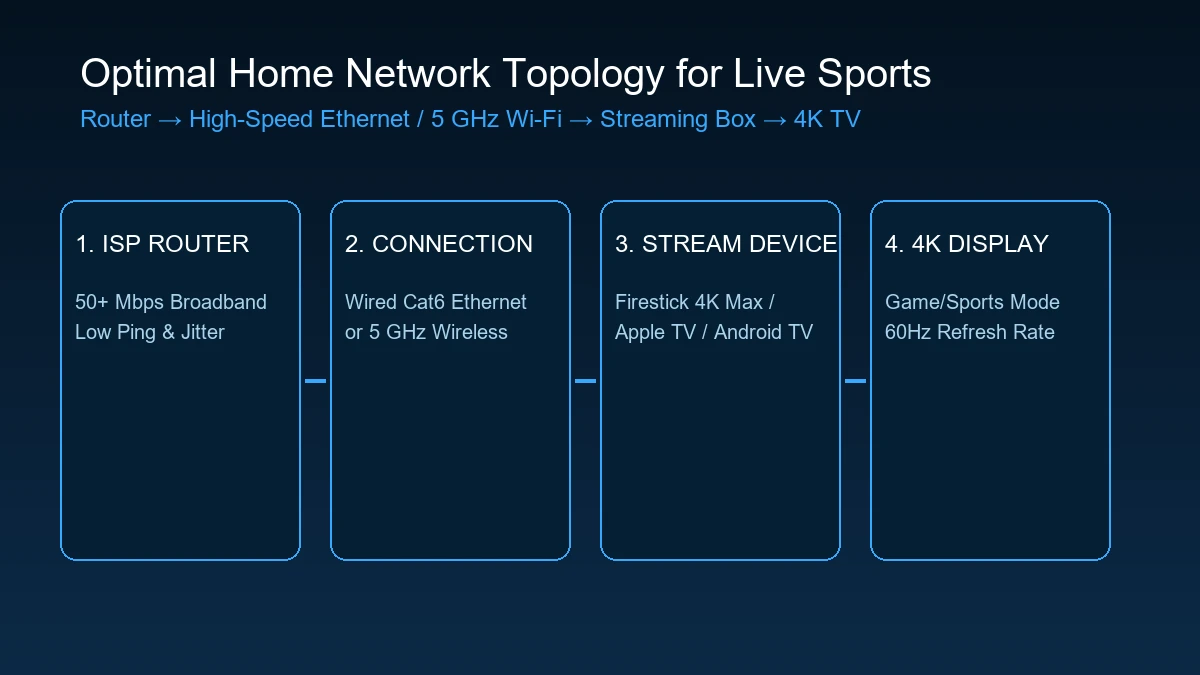 Optimal Home Network Topology for Live Sports
Troubleshooting Sports IPTV Before a Big Game
Perform this 10-minute pre-game check to prevent mid-game surprises:
- Tune In Early: Open your match channel 10 to 15 minutes before kick-off.
- Verify Stream Quality: Check if the stream is running at 50/60 FPS without micro-stutters.
- Test Audio Synchronization: Listen to pre-game commentary to ensure audio matches video lip movement.
- Check Backup Feeds: Identify alternate regional channels broadcasting the same match in case of feed issues.
- Close Extra Apps: Force-close background apps to ensure maximum free RAM.
- Check Network Household Traffic: Remind household members to pause large game updates or torrents.
- Verify Remote Batteries: Ensure remote control batteries are fresh for fast zapping.
- Test Channel Switching: Flip between two channels to verify fast startup response.
- Check Support Channels: Visit our frequently asked questions if credential errors appear.
- Enjoy the Match: Relax and enjoy high-definition live sports!
Why Choose RealMIPTV for Sports Streaming?
When streaming live sports, reliability is everything. RealMIPTV provides reliable server infrastructure engineered for high-demand live broadcasting.
- Broad Device Support: Compatible with Smart TVs, Firestick, Android TV, Apple TV, PCs, and mobile devices.
- High Frame Rate Feeds: Optimized for 50/60 FPS live sports streams.
- Fast Server Infrastructure: Built to handle peak evening and weekend sports server traffic.
- Instant Credentials Delivery: Immediate email delivery of M3U playlists and Xtream Codes logins upon subscription.
- 24/7 Assistance: Helpful customer service available through our contact page.
If you are interested in starting your own streaming business, check out our flexible IPTV reseller plans.
Experience REALM IPTV
Upgrade your entertainment with ultra-stable, anti-freeze streaming. Access premium live channels, sports, and VOD on all your favorite devices.
Frequently Asked Questions
Conclusion: Enjoy Buffer-Free Live Sports Streaming
Building the best IPTV setup for sports streaming is about connecting the right hardware, software, and network components together. By choosing a modern 4K streaming device, prioritizing Ethernet or 5 GHz Wi-Fi, configuring 60 FPS hardware decoding in a premium IPTV player, and organizing your sports favorites, you can enjoy smooth, high-definition sports coverage all year round.
Ready to elevate your sports viewing? Explore our transparent RealMIPTV pricing plans, follow our simple installation guide, browse our complete channel list, or read our guide on how to choose the best IPTV service to get started today!